
Email accounts, sync, and the settings behind them
Email seems simple until it stops syncing. Understanding incoming and outgoing servers, the protocols they use, and the ports and security they expect makes issues like a stuck Outbox or a sign-in failure much easier to reason about.
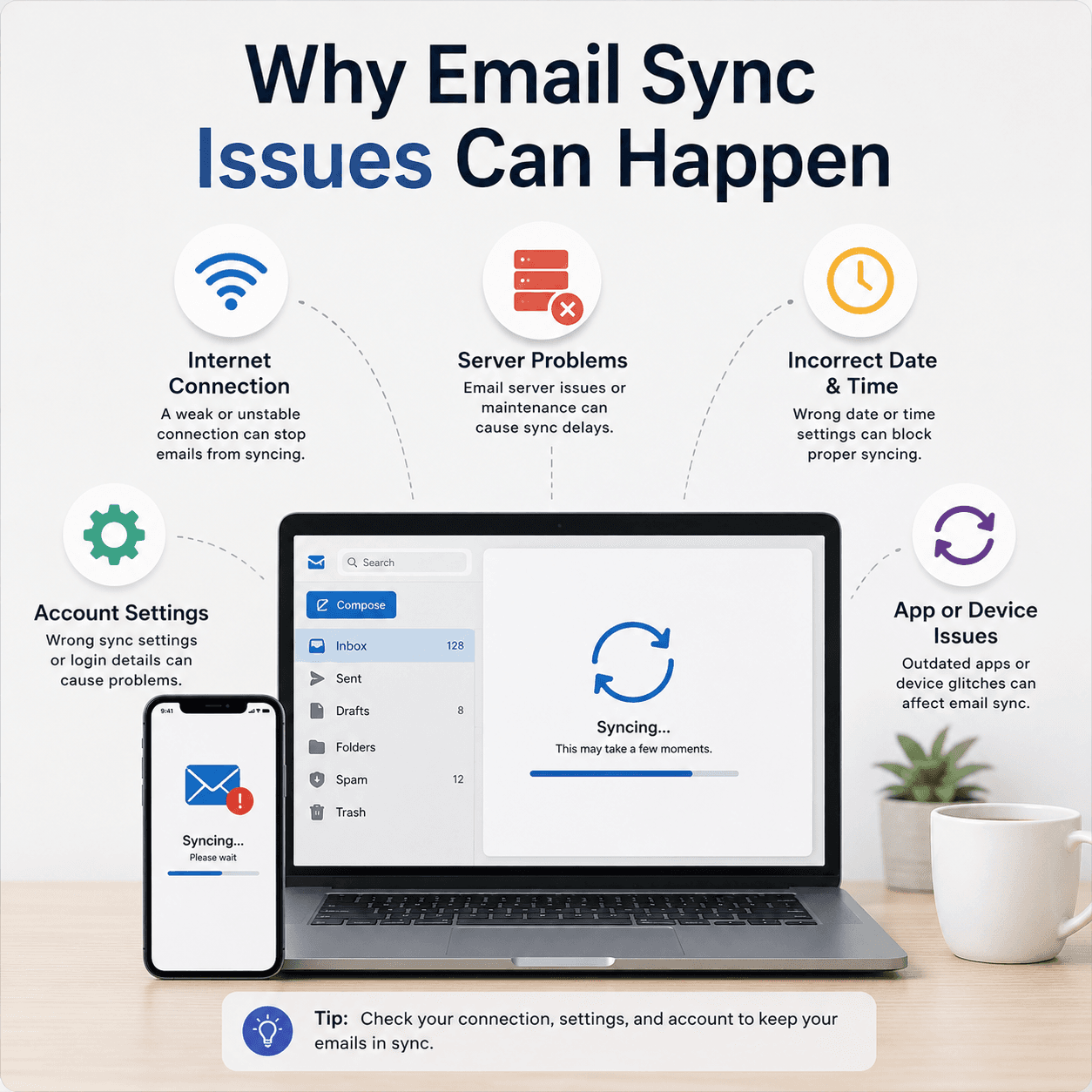
The places that matter
A quick orientation to the screens and tools this topic refers to.
Account settings
Where incoming and outgoing server details, protocols, and ports are configured for an account.
Server status
The mail provider's side, which can be busy or unavailable regardless of your device.
Sync settings
Options controlling how often and how much mail is downloaded to your device.
Security & sign-in
Encryption settings and modern sign-in methods your provider may require.
The ideas behind it
Understand these and the rest of the topic falls into place.
Incoming vs outgoing
Receiving mail uses one server and protocol; sending mail uses another, and they can fail independently.
IMAP, POP, and SMTP
IMAP and POP receive mail in different ways; SMTP sends it. Each expects specific settings.
Ports and security
Ports and encryption settings must match the provider's requirements for sync to succeed.
Where mail is stored
IMAP keeps mail on the server; POP tends to pull it down to one device.
How email actually flows
Email uses two separate paths. Receiving messages relies on an incoming server using a protocol such as IMAP or POP. Sending messages relies on a separate outgoing server using SMTP. Because these are independent, one direction can work perfectly while the other does not.
This split explains a lot of everyday symptoms. If you can read new mail but cannot send, the incoming side is fine and the outgoing side needs attention — and vice versa.
IMAP versus POP
IMAP keeps messages on the server and mirrors them to every device, so the same inbox looks consistent on your phone and computer. Reading a message on one device marks it read everywhere. POP, by contrast, traditionally downloads mail to a single device and can remove it from the server.
For most people who use more than one device, IMAP is the more convenient choice because it keeps everything in sync. Understanding which one an account uses explains why mail sometimes appears on one device but not another.
- IMAP syncs mail across all devices from the server.
- POP downloads mail to one device, often removing it from the server.
- Mismatched expectations here cause 'missing mail' confusion.
Protocols and ports
Each protocol expects specific server names, ports, and security settings provided by your email provider. A port is like a numbered door on the server for a particular kind of connection, paired with an encryption setting that keeps it private.
When these settings do not match what the provider expects — a wrong port or the wrong encryption type — the app cannot complete the connection, which often shows up as an authentication or connection error even when the password is correct.
Why the Outbox gets stuck
A message stuck in the Outbox has been written and queued to send but has not left the device. Because sending uses the outgoing SMTP server, this points to that server or its settings rather than to receiving mail, which may be working fine.
Understanding that the Outbox is specifically about sending narrows the question immediately: it is the outgoing configuration, credentials, or a temporary server issue — not the whole account.
Sign-in, security, and sudden prompts
Modern email increasingly relies on secure sign-in methods, and providers sometimes tighten their requirements. When that happens, an app that worked yesterday may suddenly ask you to authenticate again, or report that its sign-in was refused, even though nothing on your device changed.
Seeing these prompts as security updates rather than faults reframes them helpfully. The account is intact; the app simply needs to prove its access again under the provider's current rules.
- Email is two independent paths: incoming (IMAP/POP) and outgoing (SMTP).
- IMAP keeps mail in sync everywhere; POP tends to pull it to one device.
- Ports and encryption must match the provider or connections fail.
- A stuck Outbox is a sending (SMTP) issue, not a receiving one.
- Sudden password prompts are often tightened security, not a broken account.
Common symptoms
Recognisable signs related to this topic, and what they generally point to.
Emails stuck in Outbox
Messages send-but-don't-leave usually points to the outgoing (SMTP) server or its settings.
New mail not arriving
A receiving-side issue, often tied to the incoming server, sync interval, or account settings.
Server authentication fails
A mismatch in ports, security type, or credentials can stop the app from signing in to the server.
Inbox looks different on each device
With POP, mail can download to one device and vanish from others; IMAP keeps them in step.
Sudden password prompts
A changed password or a new sign-in requirement can make an app ask to authenticate again.
Educational, not step-by-step
This topic explains concepts in general terms. Exact menus, wording, and steps differ by brand, model, and software version — always follow the official documentation for your specific device. Handy Guide does not provide repair, remote access, or paid support.
Frequently asked
IMAP keeps mail on the server and syncs it across all your devices, so the inbox looks the same everywhere. POP traditionally downloads mail to a single device.
The Outbox is about sending, which uses the outgoing SMTP server. A stuck message points to that server or its settings rather than to receiving mail.
Ports and their security settings tell your app how to connect to the mail servers. They must match what your provider specifies for sync to work.
That's typical of POP, which downloads mail to a single device. IMAP keeps the same inbox in sync across all devices.
Providers sometimes update their sign-in or security requirements, so an app must authenticate again even though your account is fine.
Yes. Receiving and sending use different servers, so the incoming side can work while the outgoing (SMTP) side needs attention.
Related topics
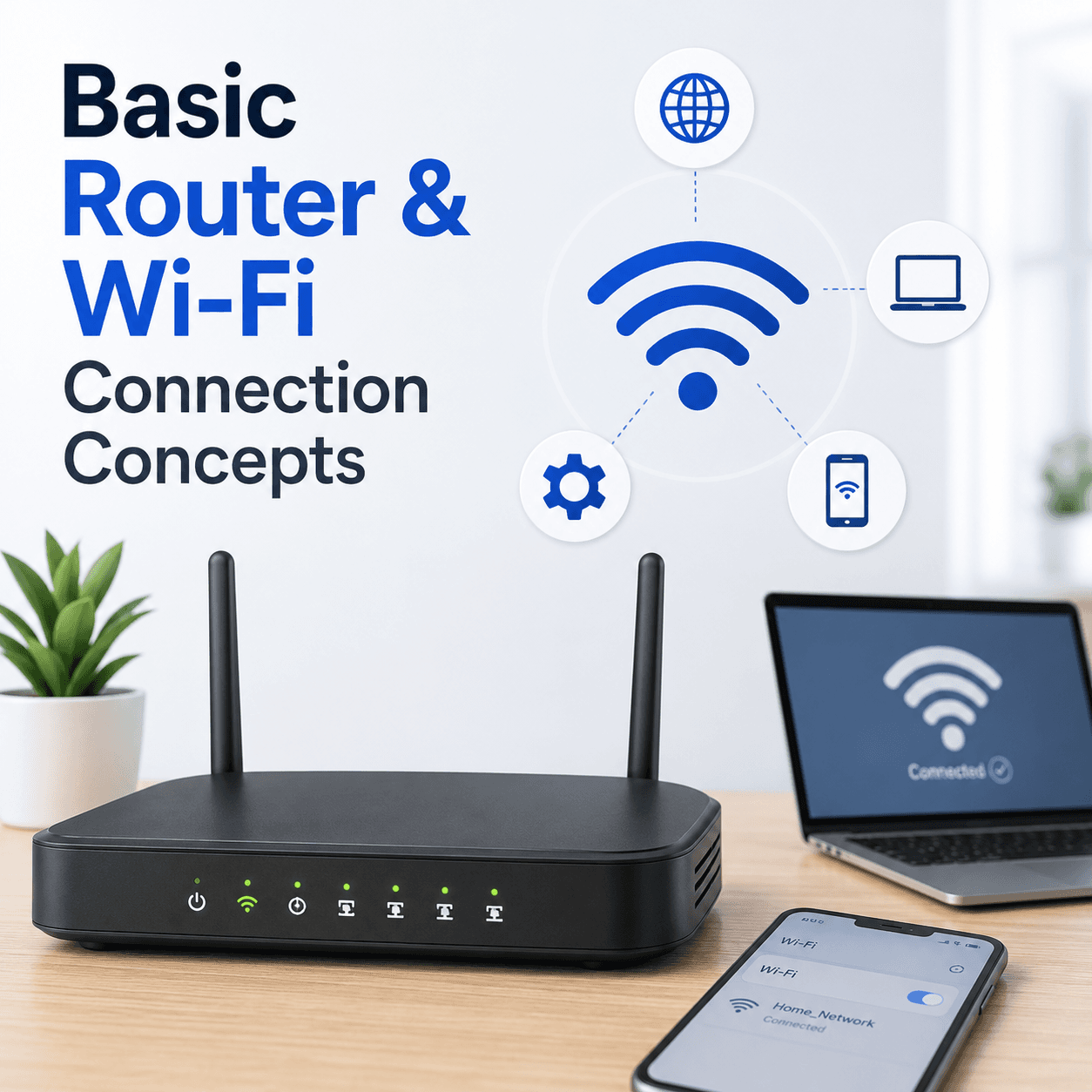 Networking
Router & Wi-Fi
How a router creates your home network, what the admin page is for, why signal and security settings shape your connection, and how bands and channels affect everyday Wi-Fi.
Read topic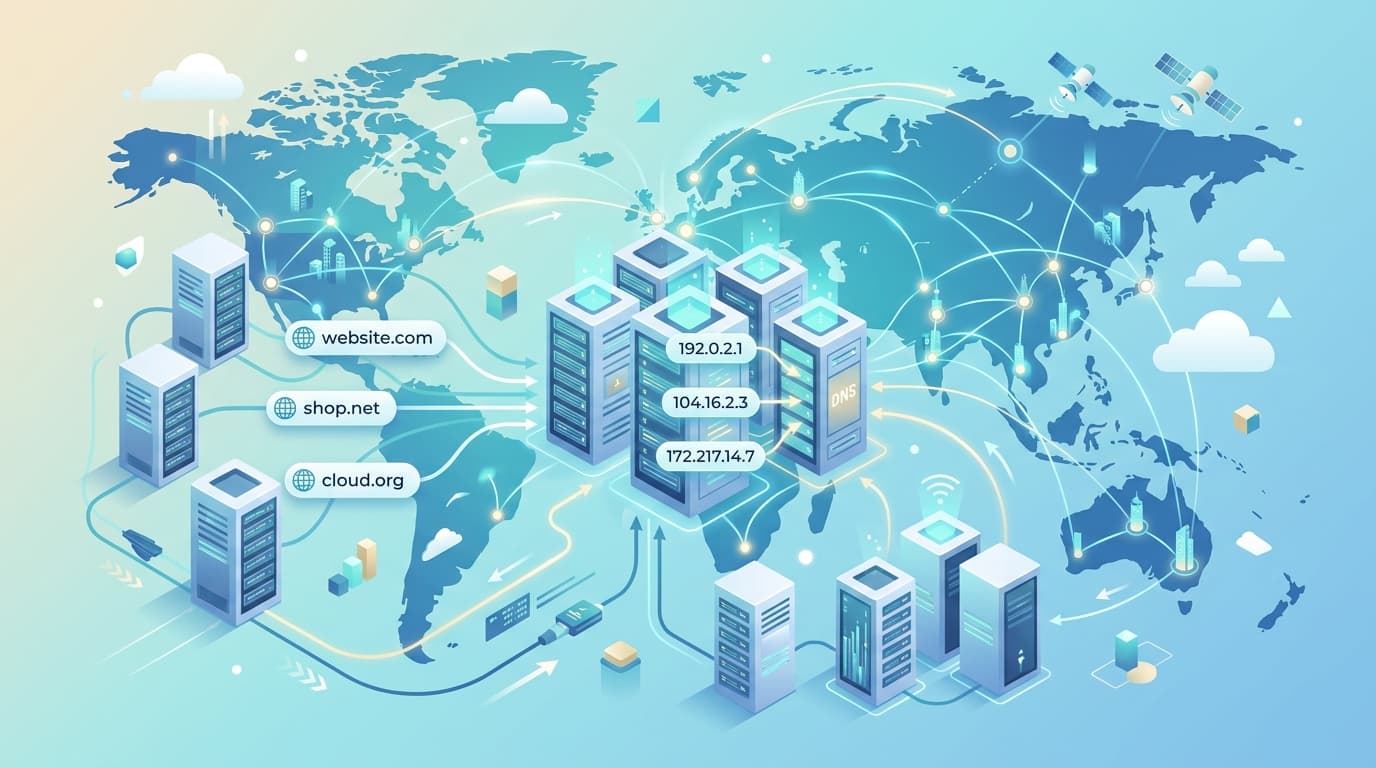 Networking
Network Drivers
How network drivers connect your PC to Wi-Fi and Ethernet, why 'Connected, no internet' points to a specific layer, and how the pieces of the networking stack fit together.
Read topic System
Windows Update
How Windows Update delivers fixes and drivers, why an update can appear stuck, what common error codes point to, and what happens when Windows rolls a change back.
Read topicKeep exploring the library
Every guide is written in plain language, free to read, and focused on helping you understand your devices with confidence.