
Network drivers, adapters, and how your PC reaches the internet
A network driver lets your computer's wired or wireless adapter talk to Windows. When connectivity is flaky, the trouble almost always lives in one specific layer — the adapter, the driver, the IP address, or DNS. Learning to tell those layers apart turns guesswork into understanding.

The places that matter
A quick orientation to the screens and tools this topic refers to.
Network Adapters
The Device Manager category listing your Wi-Fi and Ethernet hardware and their drivers.
Network & Internet Settings
Where Windows shows connection status, available networks, and adapter properties.
Router & Modem
The devices between your PC and the internet — often the real location of a connectivity issue.
Connection status
The small icon and details that reveal whether you have a local link, an IP address, and internet.
The ideas behind it
Understand these and the rest of the topic falls into place.
Adapters need drivers
The driver turns the adapter's raw signals into data Windows can route through its networking stack.
Signal and speed vary
Wireless drivers constantly adapt to signal quality, which is why speed and stability can change by room.
Layers stack up
Hardware, driver, IP address, and DNS are separate layers — problems live in one of them, not all at once.
Local vs internet
Reaching your router is one thing; reaching the wider internet through it is another entirely.
What a network driver does
A network driver is the software that lets your computer's network adapter — the Wi-Fi radio or the Ethernet port — communicate with Windows. On the receive side it hands incoming data up to the operating system's networking stack; on the transmit side it takes outgoing data and instructs the hardware to send it.
Wireless drivers do extra work: they manage connecting to access points, negotiating security, and adapting the data rate as signal quality changes. That is why a wireless connection can feel fast in one room and slow in another even though nothing about the driver has changed.
The networking stack, one layer at a time
It helps to picture networking as a stack of layers, each depending on the one below. At the bottom is the physical link — the cable or the radio signal. Above that sits the driver, then an IP address that identifies your device on the network, and finally services like DNS that make the internet usable by name.
Almost every connection problem lives in exactly one of these layers. A dead cable is physical; a missing adapter is the driver; 'no internet' is usually IP or DNS. Diagnosing which layer is involved is far more productive than changing everything at once.
- Physical: the cable or wireless signal itself.
- Driver: software that lets Windows use the adapter.
- IP address: your device's identity on the local network.
- DNS: turns website names into addresses.
Why 'Connected, no internet' happens
This message means your device has a working local connection to the router but cannot reach the broader internet. The link layer is fine; something above it is not. Common culprits are an IP address that was not assigned correctly or a DNS service that cannot translate website names into addresses.
Because these are separate layers, the fix is usually specific: renewing the IP address, checking DNS, or looking at the router — not reinstalling the adapter driver. Knowing which layer is involved saves a lot of guesswork.
Wired vs wireless
Wired Ethernet connections are generally more stable because they are not affected by distance, walls, or interference. Wireless connections trade some of that stability for convenience, and the wireless driver is constantly balancing speed against reliability.
When troubleshooting, temporarily using a wired connection is a useful way to tell whether an issue is with the wireless link specifically or with the network as a whole. If wired works and wireless doesn't, the problem is in the wireless layer, not the internet connection itself.
What affects real-world speed
The speed you actually experience is rarely the number on your plan. Distance from the router, walls and interference, the Wi-Fi band you connect to, and how many devices share the network all pull real throughput down. The wireless driver adapts continuously to keep the link stable, sometimes trading speed for reliability.
This is why moving closer to the router, or using a less crowded band, can noticeably change performance without anything being 'fixed'. Understanding these factors sets realistic expectations and points to simple, physical improvements.
After a reinstall or reset
A fresh Windows installation sometimes leaves a network adapter on a generic driver, or without a working driver at all, until the correct one is provided. This can feel like a chicken-and-egg problem, since downloading a driver usually needs a connection in the first place.
In these situations a wired connection, or a driver obtained on another device, bridges the gap. Recognising that the adapter is present but simply lacks its software explains why the hardware appears in the system yet cannot connect.
- The driver lets Windows talk to your Wi-Fi or Ethernet hardware.
- Networking is layered: physical, driver, IP address, then DNS.
- 'Connected, no internet' is usually an IP or DNS issue, not the adapter.
- Wired is steadier than wireless; testing wired isolates the problem.
- Real speed depends on distance, interference, band, and shared load.
Common symptoms
Recognisable signs related to this topic, and what they generally point to.
Connected, no internet access
The local link works but requests are not reaching the wider internet — often an IP or DNS layer issue.
Wi-Fi drops in some rooms
Signal strength changes with distance and walls, and the wireless driver adapts the connection rate accordingly.
Adapter missing after reinstall
A fresh Windows install can leave a network adapter on a generic driver or none at all until one is provided.
Slower speeds than expected
Distance, interference, the band in use, and shared load all pull real-world speed below the headline figure.
Wi-Fi won't turn on
A disabled adapter, a hardware switch, or airplane mode can make the wireless option disappear entirely.
Educational, not step-by-step
This topic explains concepts in general terms. Exact menus, wording, and steps differ by brand, model, and software version — always follow the official documentation for your specific device. Handy Guide does not provide repair, remote access, or paid support.
Frequently asked
The adapter is the physical hardware (the Wi-Fi radio or Ethernet port). The driver is the software that lets Windows communicate with that hardware.
Wireless speed depends on distance, interference, the band you connect to, and how many devices share the network. The driver adapts the rate to keep the connection stable.
Usually not. 'Connected, no internet' points to the IP or DNS layer or the router, rather than the adapter driver itself.
Temporarily connect by Ethernet cable. If wired works and wireless doesn't, the issue is in the wireless layer rather than the internet connection.
An adapter can end up on a generic or missing driver after a major update, so the wireless option vanishes until the correct driver is in place.
It's the address that identifies your device on the local network so traffic can find its way to and from it.
Related topics
 Networking
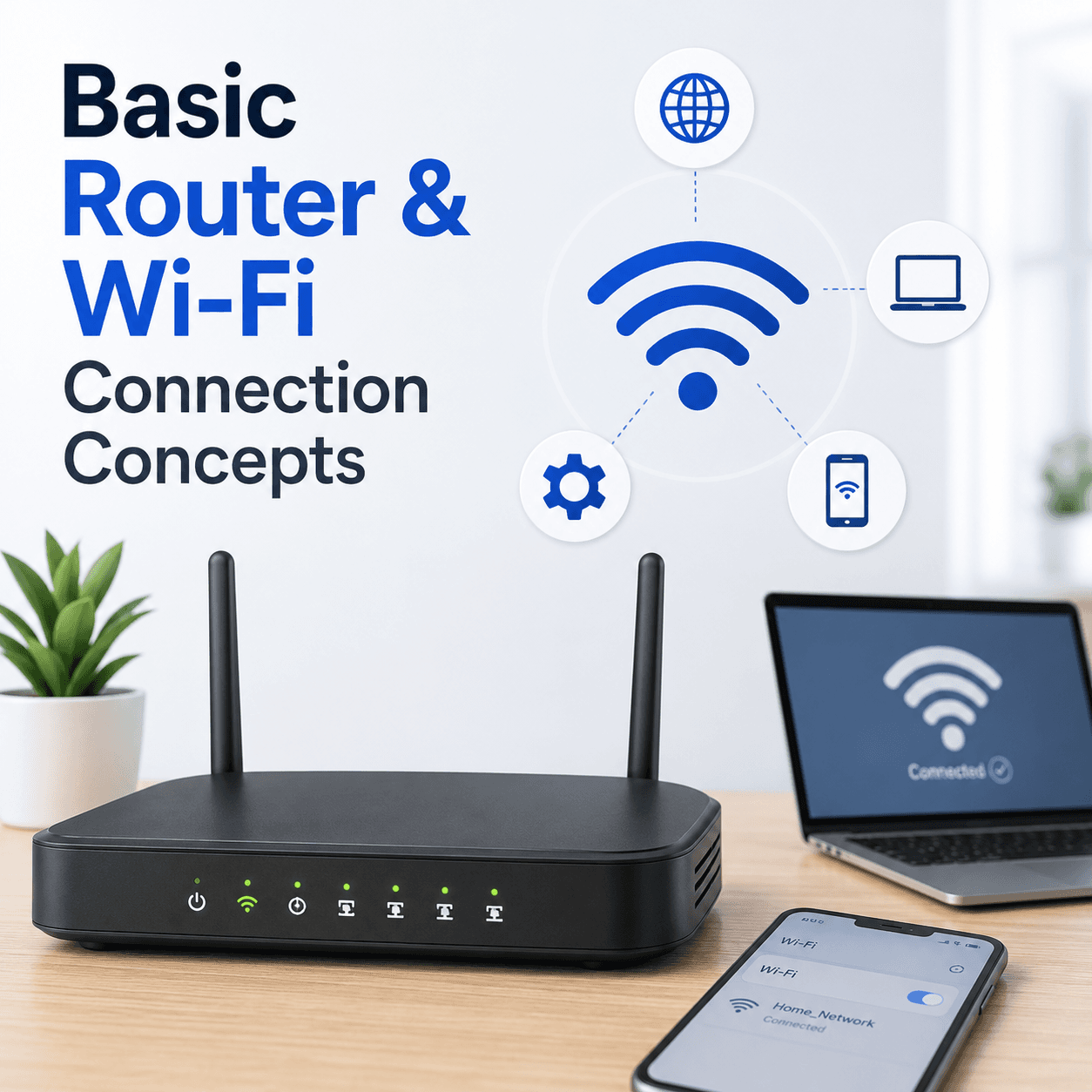
Router & Wi-Fi
How a router creates your home network, what the admin page is for, why signal and security settings shape your connection, and how bands and channels affect everyday Wi-Fi.
Read topic Peripherals
USB Drivers
How the USB driver stack recognises devices the instant you plug them in, why a device sometimes appears as 'unknown', and how power and ports quietly affect reliability.
Read topic System
Windows Update
How Windows Update delivers fixes and drivers, why an update can appear stuck, what common error codes point to, and what happens when Windows rolls a change back.
Read topicKeep exploring the library
Every guide is written in plain language, free to read, and focused on helping you understand your devices with confidence.