
USB drivers and how plug-and-play really works
USB support is a layered stack rather than a single driver. Understanding host controllers, class drivers, device descriptors, and power explains why most devices 'just work' — and why a few need extra help or a different port.
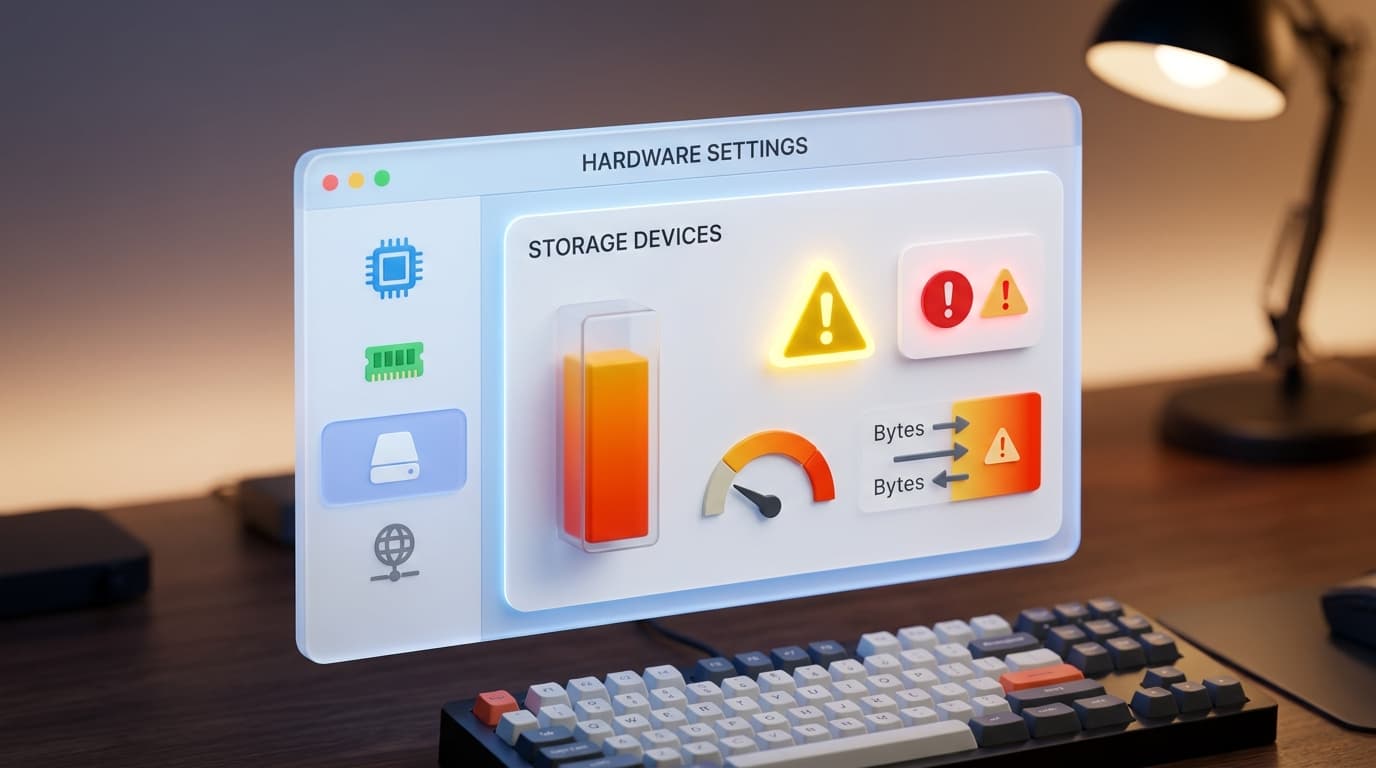
The places that matter
A quick orientation to the screens and tools this topic refers to.
USB controllers
The Device Manager section listing USB host controllers and hubs that manage the ports.
Unknown / Other devices
Where a device with a missing driver appears, often with a warning symbol.
Device properties
The details pane that reveals a device's identifiers and which driver Windows loaded for it.
Power management
Settings that can let Windows sleep a USB port, occasionally causing dropouts.
The ideas behind it
Understand these and the rest of the topic falls into place.
USB is a stack
A host controller manages the port, and class drivers handle whole categories of devices on top of it.
Devices describe themselves
On connection, a device reports its class and identifiers so Windows can load the right driver.
Power and hubs matter
Ports and hubs share power and bandwidth, which can affect how reliably devices are recognised.
Enumeration is instant
The recognition handshake usually takes a second or two, which is why plug-and-play feels immediate.
The USB driver stack
USB does not rely on a single driver. At the bottom is a host controller driver that manages the physical port and schedules data on the bus. On top of that sit class drivers, which handle entire families of devices using shared standards — one for keyboards and mice, one for storage, one for audio, and so on.
This layered design is why plugging in a standard flash drive or keyboard works instantly: Windows already has the class driver, so it does not need anything device-specific. Only devices with unusual features tend to need a manufacturer driver.
How a device is recognised
When you connect a device, the host controller enumerates it — it reads a small descriptor the device provides that reports its class, subclass, and identifiers. Based on that information, Windows selects and loads the matching driver, and the device becomes usable, usually within a second or two.
If Windows cannot match the descriptor to a driver, the device appears as 'unknown' or under 'Other devices'. That does not mean the hardware is broken — only that the software translation layer is missing.
Class drivers versus custom drivers
A class driver is a general-purpose driver that works for any device following a shared standard. Because a keyboard is a keyboard and a flash drive is a flash drive, one driver can serve thousands of models. This is the quiet magic behind plug-and-play.
Some devices, however, offer features beyond the standard — extra buttons, specialised modes, or unusual hardware. Those often need a custom driver from the manufacturer to expose everything. The basic function may still work on a class driver while advanced features stay dormant until the custom driver is installed.
- Class drivers cover common device types automatically.
- Custom drivers unlock extra, model-specific features.
- Basic function can work before a custom driver is added.
Why ports behave differently
Not all USB ports are equal. They can differ in speed and in how much power they can deliver, and hubs split that capacity further. A power-hungry device may work in a port connected directly to the computer but struggle through an unpowered hub.
This is why a device that misbehaves in one port sometimes works perfectly in another. It is a useful, non-destructive thing to check before assuming a driver problem.
Speed, standards, and cables
USB has evolved through several generations, each faster than the last. When a fast device connects through a slower port — or a cable that only supports slower speeds — the two negotiate down to the highest speed they both support. Nothing is broken; they simply meet in the middle.
This explains why the same drive can feel quick on one machine and slow on another. Matching a device to a capable port and cable is often all it takes to reach its full speed.
Power management and dropouts
To save energy, Windows can suspend a USB port when a device seems idle. Usually this is invisible, but occasionally a device does not wake cleanly and appears to disconnect until it is replugged. The familiar connect-disconnect chime can also come from a loose cable or a port that cannot supply steady power.
Seeing these as power and connection issues, rather than driver faults, points troubleshooting in a more useful direction — toward cables, ports, and power settings rather than reinstalling software.
- USB is a stack: a host controller plus class drivers for whole device families.
- Devices describe themselves so Windows can load the right driver automatically.
- 'Unknown device' means a missing driver, not broken hardware.
- Ports and hubs differ in power and speed, which changes reliability.
- Dropouts are often power or cable issues rather than driver faults.
Common symptoms
Recognisable signs related to this topic, and what they generally point to.
Device shows as 'unknown'
Windows detected something was plugged in but could not match it to a driver, so features are unavailable.
Device works in one port only
Different ports and hubs offer different power and speeds, which can change whether a device is recognised.
Repeated connect/disconnect sound
A loose cable or power issue can make a device enumerate over and over instead of settling.
Slower transfer than expected
A fast device in a slower port, or through a hub, negotiates down to the lower speed both support.
Device sleeps and won't wake
Power-saving settings can suspend a port, so a device appears to drop until it is replugged.
Educational, not step-by-step
This topic explains concepts in general terms. Exact menus, wording, and steps differ by brand, model, and software version — always follow the official documentation for your specific device. Handy Guide does not provide repair, remote access, or paid support.
Frequently asked
Windows includes class drivers for common device types. A standard keyboard, mouse, or flash drive uses those shared drivers, so nothing extra is needed.
Windows detected a device but could not find a matching driver from the identifiers it reported, so it cannot use the device's features yet.
Yes. Hubs share power and bandwidth across ports, so a demanding device may work better plugged directly into the computer.
A fast device connected through a slower port or cable negotiates down to the speed both support. Using a faster port and cable restores full speed.
A loose cable, an underpowered port, or aggressive power-saving can make a device enumerate repeatedly instead of settling.
For basic function, rarely. For extra features on specialised devices, a manufacturer driver may be needed to unlock everything.
Related topics
 Printing
Printer Drivers
How printer drivers translate your documents into print, and why an offline status or stuck queue usually traces back to the driver, the spooler, or the connection.
Read topic Imaging
Scanner Drivers
How scanner drivers and imaging standards like TWAIN and WIA let software capture images, and why a scanner is sometimes seen by Windows yet still won't scan from your app.
Read topic Networking
Network Drivers
How network drivers connect your PC to Wi-Fi and Ethernet, why 'Connected, no internet' points to a specific layer, and how the pieces of the networking stack fit together.
Read topicKeep exploring the library
Every guide is written in plain language, free to read, and focused on helping you understand your devices with confidence.