
Why a computer can feel slow, explained simply
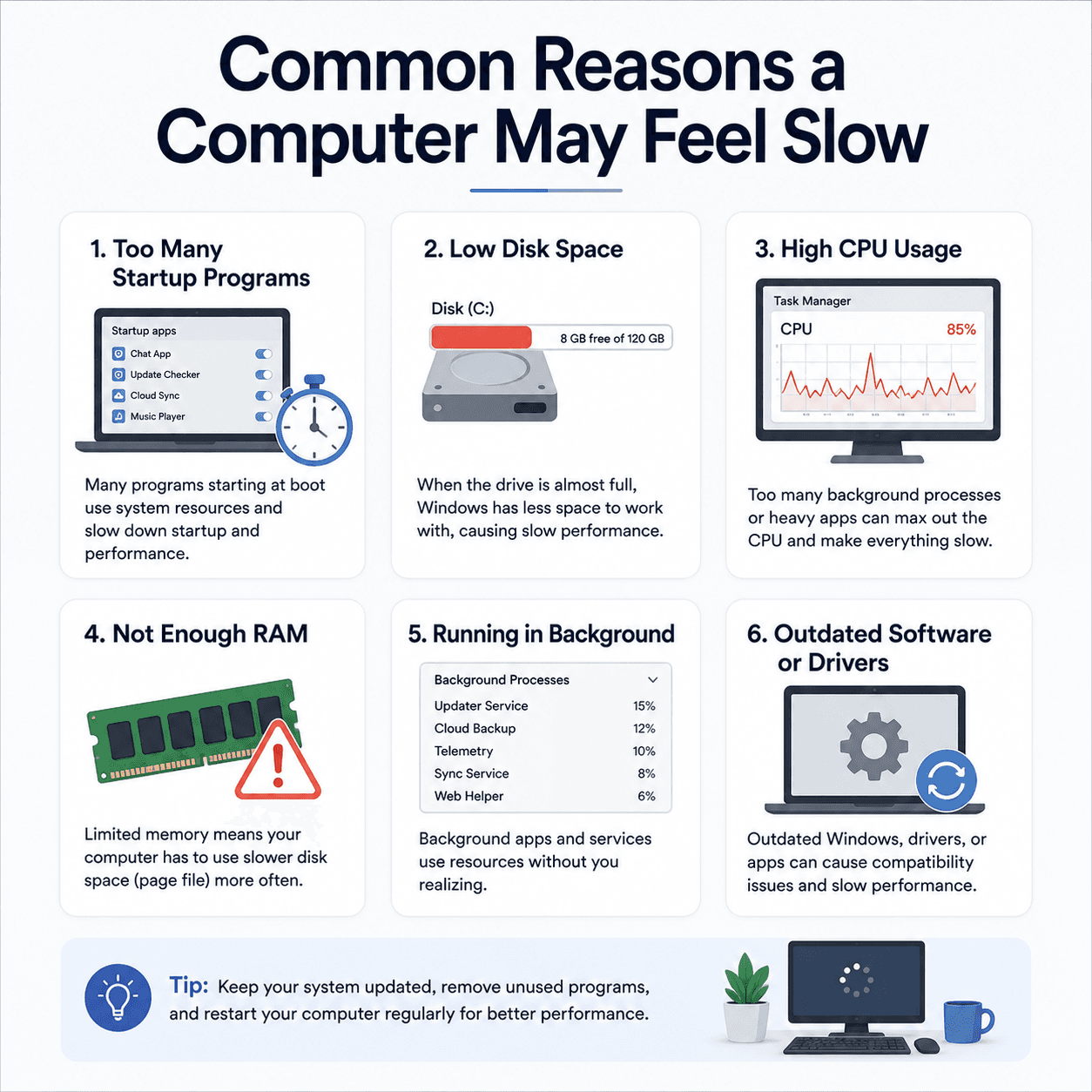
A slow PC is rarely caused by one thing. Startup programs, limited free disk space, heavy background activity, low memory, and occasionally outdated drivers each contribute in ways that are easy to understand once you know where to look — and they add up.
The places that matter
A quick orientation to the screens and tools this topic refers to.
Task Manager
Shows which apps are using processor, memory, and disk right now, and what starts with Windows.
Storage settings
Where you can see how full the system drive is — a common, quiet cause of sluggishness.
Startup apps
The list of programs that launch automatically, adding to the time and load at boot.
Resource graphs
Live views of CPU, memory, and disk that reveal what's actually busy at any moment.
The ideas behind it
Understand these and the rest of the topic falls into place.
Startup load adds up
Programs that launch at boot keep running in the background and compete for resources.
Free space helps
A nearly full system drive leaves little room for temporary files, which can slow everyday tasks.
Drivers affect feel
Outdated graphics or chipset drivers can hold back responsiveness even when hardware is capable.
Some slowness is temporary
Indexing, updating, and syncing make a PC briefly busy, then ease off on their own.
Startup programs and background load
Every program that launches when Windows starts continues to use memory and processor time in the background. A handful is normal; a long list can noticeably delay startup and leave fewer resources for the apps you actually want to use.
Task Manager's Startup tab lists these programs and gives a rough sense of their impact. Reviewing what genuinely needs to run at boot is one of the most effective ways to make a PC feel quicker, without changing any hardware.
Disk space and why it matters
Windows uses free space on the system drive for temporary files and general housekeeping. When that space runs low, everyday operations that rely on it can slow down, and warnings may appear. Keeping some headroom free helps the system breathe.
The type of drive matters too. A traditional spinning hard drive is far slower than a solid-state drive, so a PC that feels sluggish everywhere may simply be limited by older storage rather than anything being wrong.
- Free space gives Windows room for temporary files.
- A nearly full system drive slows routine tasks.
- Solid-state drives feel dramatically faster than older spinning drives.
Memory and multitasking
Memory, or RAM, is the fast workspace where active programs live. When many apps and browser tabs are open at once, the system must juggle what fits in that workspace, moving less-used data to slower storage. That juggling is felt as lag.
Closing apps and tabs you are not using frees memory and often restores responsiveness immediately. Understanding memory as a limited desk, rather than infinite space, makes this behaviour intuitive.
Where drivers come in
Drivers are not usually the first cause of a slow PC, but they play a role. Graphics and chipset drivers in particular influence how smoothly the system draws the screen and moves data between components. Keeping them reasonably current can help a capable machine perform at its best.
The key is balance: a slow computer is typically the sum of several small factors. Working through startup load, free space, background activity, and drivers in turn is more effective than expecting a single change to fix everything.
Heat, throttling, and temporary busyness
Computers protect themselves from overheating by slowing down when they get too hot — a behaviour called thermal throttling. Dust-clogged vents or heavy sustained load can trigger it, which feels like sudden, unexplained sluggishness under pressure.
Not all slowness is a problem to solve, either. Background tasks like search indexing, updates, and cloud syncing make a PC briefly busy after big changes, then quieten down. A short wait sometimes resolves what looked like a permanent decline.
- Slowness is usually several small factors combined, not one cause.
- Startup programs and background load steal resources from the start.
- Low free space and older spinning drives slow everyday tasks.
- Running out of memory forces slow juggling; closing apps helps at once.
- Heat can throttle performance, and some slowness is just temporary busyness.
Common symptoms
Recognisable signs related to this topic, and what they generally point to.
Slow to start up
Many startup programs and background services extend the time from power-on to a usable desktop.
High CPU or disk usage
A single busy process can make the whole system feel unresponsive until it settles.
Low storage warnings
When the system partition fills up, routine operations that need temporary space slow down.
Everything lags with many tabs open
Browser tabs and open apps consume memory; when it runs short, the system slows to juggle it.
Fans spin up and things get hot
Sustained load raises temperature, and a hot system may slow itself to stay within safe limits.
Educational, not step-by-step
This topic explains concepts in general terms. Exact menus, wording, and steps differ by brand, model, and software version — always follow the official documentation for your specific device. Handy Guide does not provide repair, remote access, or paid support.
Frequently asked
Rarely. It is normally a combination — startup programs, low disk space, heavy background activity, and sometimes older drivers all add up.
Yes. Windows relies on free space for temporary files and housekeeping, so a nearly full system drive can make routine tasks slower.
They can help. Current graphics and chipset drivers let capable hardware perform at its best, though they are only one part of overall performance.
Each tab uses memory. When memory runs short, the system moves data to slower storage to cope, which is felt as lag. Closing tabs frees memory.
To protect itself, a PC reduces speed when temperatures climb. Clean vents and good airflow help it sustain performance.
After setup or big updates, background tasks like indexing and syncing run for a time, then finish, so performance settles.
Related topics
 System
Windows Update
How Windows Update delivers fixes and drivers, why an update can appear stuck, what common error codes point to, and what happens when Windows rolls a change back.
Read topic Networking
Network Drivers
How network drivers connect your PC to Wi-Fi and Ethernet, why 'Connected, no internet' points to a specific layer, and how the pieces of the networking stack fit together.
Read topic Peripherals
USB Drivers
How the USB driver stack recognises devices the instant you plug them in, why a device sometimes appears as 'unknown', and how power and ports quietly affect reliability.
Read topicKeep exploring the library
Every guide is written in plain language, free to read, and focused on helping you understand your devices with confidence.