
Routers, Wi-Fi, and how your home network fits together
The router is the hub of your home network. Understanding its role, its admin page, the difference between bands, and how security settings work clears up the great majority of everyday Wi-Fi confusion.
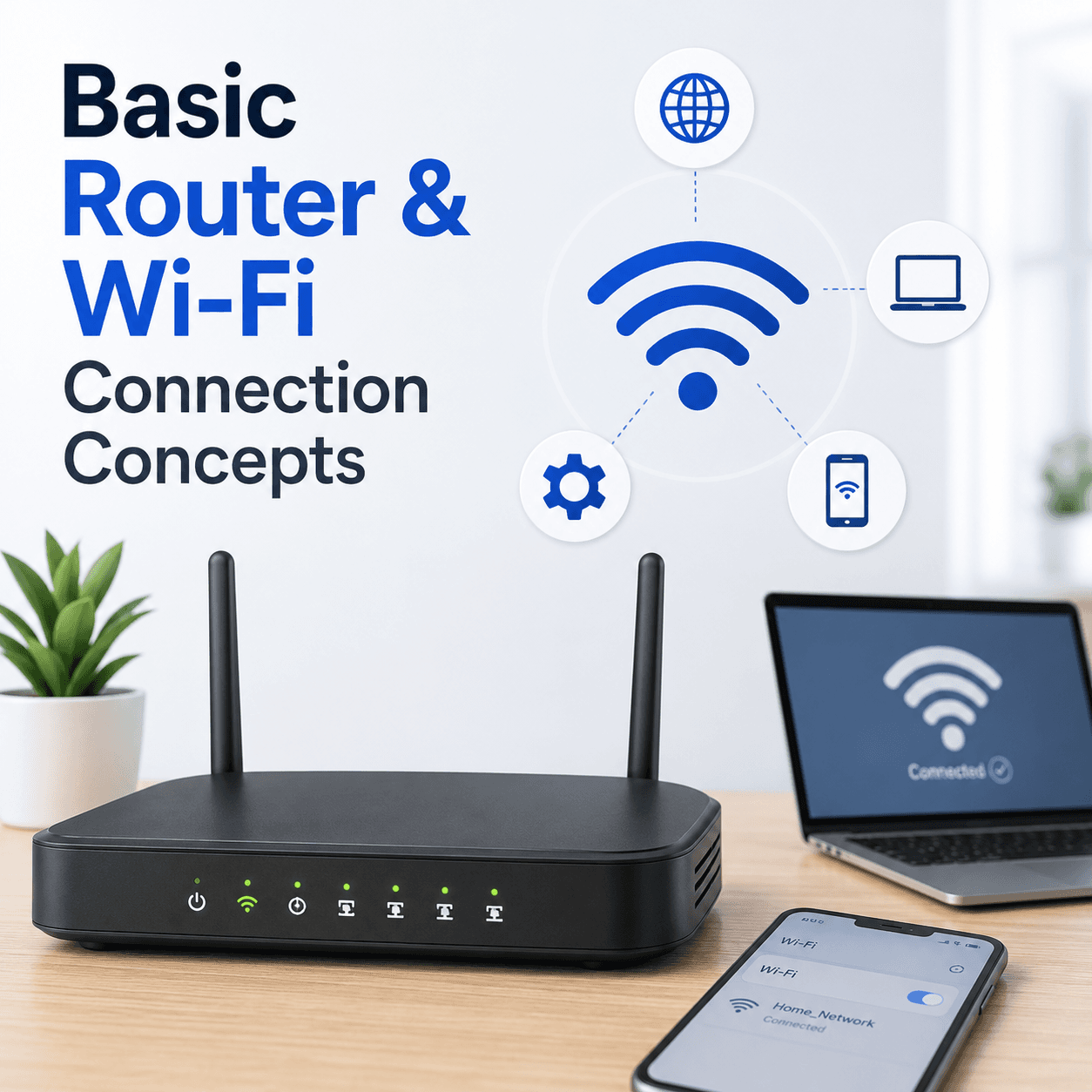
The places that matter
A quick orientation to the screens and tools this topic refers to.
Router admin page
The settings page (often at an address like 192.168.1.1) where the network is configured.
Available networks
The list of nearby Wi-Fi networks, sometimes showing separate entries for different bands.
Wi-Fi security settings
Where the network password and security type are set, protecting who can join.
Connected devices
A list, on many routers, of what is currently using the network and how much.
The ideas behind it
Understand these and the rest of the topic falls into place.
The router is the hub
It connects your devices to each other and to the internet, and hands out local addresses.
Bands and range differ
Different Wi-Fi bands trade range for speed, which affects how a connection feels in each room.
Security protects access
Modern Wi-Fi security keeps the connection encrypted and limits who can join the network.
Router vs internet
A healthy local network is separate from your internet service actually being up.
What a router does
A router is the central device of a home network. It connects to your internet service on one side and to your devices on the other, and it assigns each device a local address so traffic can find its way. Without it, your devices would have no shared network to join.
Most routers combine several functions in one box, including the Wi-Fi radios that broadcast your wireless network. That is why 'the router' and 'the Wi-Fi' are often talked about as the same thing at home.
The admin page
Routers expose a settings page, usually reached through a local address such as 192.168.1.1 in a web browser. From there you can change the network name, password, security type, and other options. Reaching it requires being connected to that router's own network.
If the page will not open, the two most common reasons are using the wrong address for that model or not being connected to the router in the first place. Both are about access to the page, not necessarily a fault in the router.
Bands, channels, and range
Wi-Fi operates on different bands that trade range for speed. One reaches further but is slower; another is faster but does not travel as far. Some networks present these as separate entries, which is why you might see more than one name from the same router.
Within each band are channels, and when many nearby networks crowd the same channel, everyone's speed can suffer. This is why Wi-Fi sometimes feels worse at busy times of day or in dense buildings, even with a strong signal.
- One band reaches further but is slower.
- Another band is faster but has shorter range.
- Crowded channels reduce speed even with good signal.
Security and joining the network
Security settings protect who can join and keep traffic encrypted. Using a modern security type with a strong password is the simplest way to keep a home network private, and a mismatch here is a common reason a device refuses to connect.
When a device will not join, the usual causes are an incorrect password or a difference in the security type the device and router expect. Because these are about agreement between two devices, matching the settings resolves most cases.
Router problems versus internet problems
It is worth separating two very different situations. If devices connect to the router but nothing loads, the local network is healthy and the issue lies beyond it — with the internet service or the connection to it. If devices cannot connect to the router at all, the problem is closer to home.
Making this distinction early avoids wasted effort. A quick check of whether other devices have the same experience helps place the problem on the right side of the router.
- The router is the hub: it links your devices and hands out local addresses.
- The admin page needs the right address and a connection to that router.
- Bands trade range for speed; crowded channels slow everyone down.
- Most 'can't join' issues are a wrong password or security mismatch.
- Connecting to the router but no internet points beyond the local network.
Common symptoms
Recognisable signs related to this topic, and what they generally point to.
Admin page won't open
The settings page fails to load, often because of the wrong address or not being on the network.
Signal drops between rooms
Distance and walls weaken Wi-Fi, and devices may cling to a weak signal instead of switching.
Can't join the network
A wrong password or a mismatch in security settings can prevent a device from connecting.
Network is slow at busy times
Many devices sharing the connection, or a crowded channel, can reduce speed for everyone.
Wi-Fi works but internet is down
Devices connect to the router fine, yet nothing loads — pointing beyond the local network.
Educational, not step-by-step
This topic explains concepts in general terms. Exact menus, wording, and steps differ by brand, model, and software version — always follow the official documentation for your specific device. Handy Guide does not provide repair, remote access, or paid support.
Frequently asked
Usually because you are using the wrong address for that model, or you are not connected to the router's own network. Both prevent the page from loading.
Many routers broadcast on more than one band, which can appear as separate network names. The bands trade range for speed.
The most common reasons are an incorrect password or a mismatch in the security type between the device and the router.
More devices and nearby networks compete for the same channels at busy times, which can reduce speed even when your signal is strong.
The local network is working, so the issue is beyond the router — typically the internet service or the link to it.
Not always. Some homes have a separate modem that brings the internet in and a router that shares it, while many devices combine both in one box.
Related topics
 Networking
Network Drivers
How network drivers connect your PC to Wi-Fi and Ethernet, why 'Connected, no internet' points to a specific layer, and how the pieces of the networking stack fit together.
Read topic System
Windows Update
How Windows Update delivers fixes and drivers, why an update can appear stuck, what common error codes point to, and what happens when Windows rolls a change back.
Read topic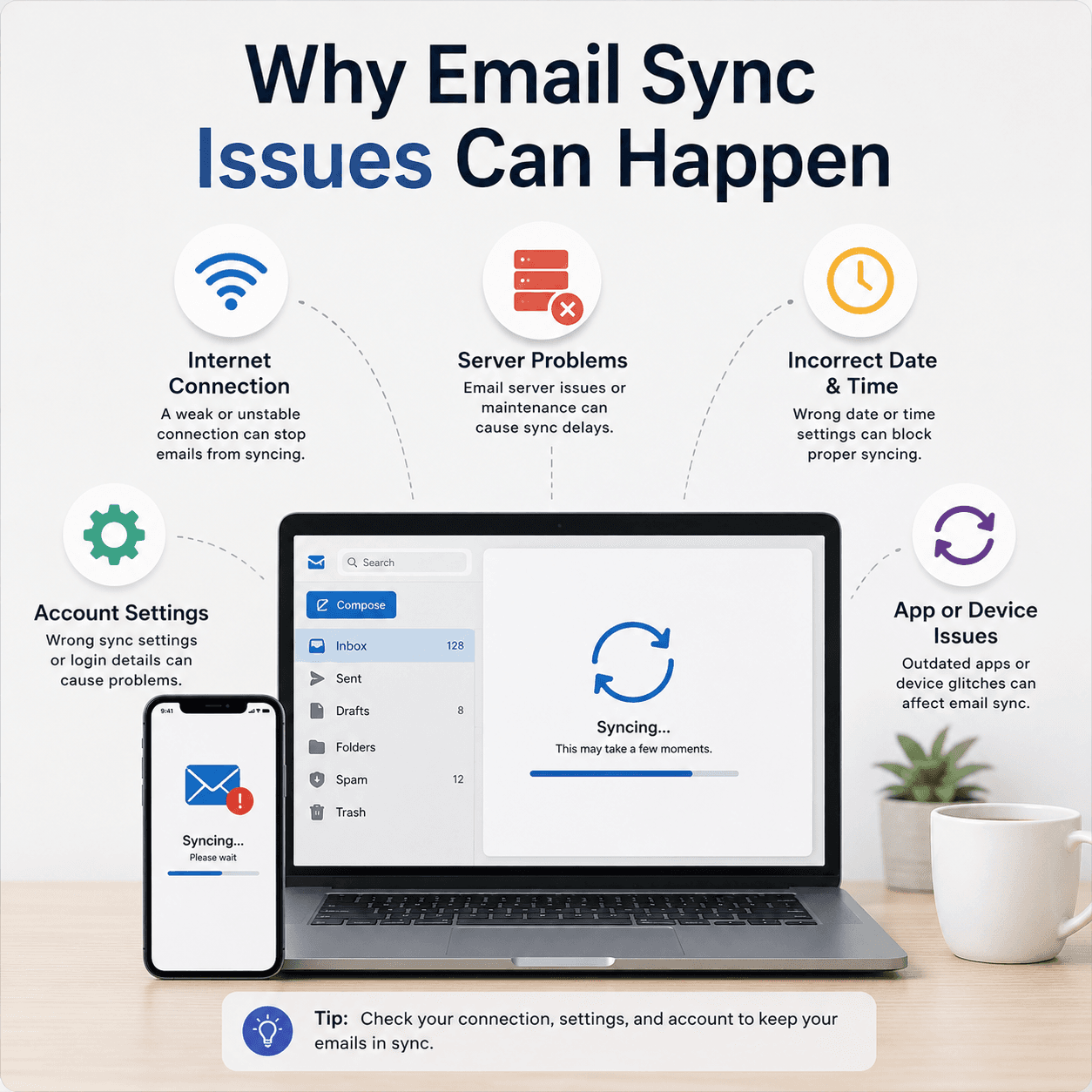 Communication
Email Basics
How email accounts sync, what ports and protocols like IMAP, POP, and SMTP do, why messages stall in the Outbox, and how incoming and outgoing paths fail independently.
Read topicKeep exploring the library
Every guide is written in plain language, free to read, and focused on helping you understand your devices with confidence.