
Understanding printer drivers, offline status, and the print queue
A printer driver is the translator between your computer and your printer. When printing goes wrong, the cause is almost always one of three layers — the driver, the queue, or the connection. Once you can picture those layers, the whole subject becomes far less mysterious.
The places that matter
A quick orientation to the screens and tools this topic refers to.
Devices & Printers
The Windows control panel where your printer appears, shows its status, and exposes settings and defaults.
Print Queue
The waiting line of documents. A frozen job here can block everything behind it until it is cleared.
Device Manager
Where the underlying driver software is listed, along with any warning symbols that hint at a problem.
Printer properties
The per-printer dialog that stores defaults, ports, and the driver a printer is bound to.
The ideas behind it
Understand these and the rest of the topic falls into place.
Drivers help communication
The driver converts a document into the exact page-description language your specific printer model understands.
Printers use queues
Jobs are lined up and sent one at a time. If one job stalls, later jobs simply wait behind it.
Connection methods differ
USB, Wi-Fi, and network printers each reach the computer differently, which changes what 'offline' can mean.
The spooler coordinates
A background service accepts jobs, orders them, and hands them to the printer — its health matters a lot.
What a printer driver actually does
When you press Print, your document exists as text, images, and layout inside an application. Your printer does not understand that format directly. The printer driver is the piece of software that translates the document into a page-description language — such as PCL or PostScript — that the specific printer model can interpret and put onto paper.
Because different printers speak different dialects, each model typically needs its own driver. The right driver also exposes the settings you see when printing, like paper size, quality, colour, and double-sided output. A missing or mismatched driver is a common reason a printer either does not appear or produces unexpected results.
How the print queue works
The print queue, managed by the Windows Print Spooler, is a waiting line. When you print several documents, they are added to the queue and sent to the printer one at a time. This lets you keep working while printing happens in the background.
If a document cannot be processed — because of a connection drop, a paper issue, or a corrupted job — it can become stuck at the front of the queue. Everything behind it then waits. Understanding this explains why 'nothing prints' is often solved by clearing one stalled job rather than reinstalling anything.
The print spooler in more detail
The spooler is a background Windows service that quietly does a lot of work. It receives each print job, stores it temporarily, decides the order, and feeds jobs to the printer at a pace the device can handle. Because it runs invisibly, people rarely think about it until printing stops.
When the spooler becomes confused — often by a job it cannot finish — new jobs pile up behind the blockage. This is why a printer can look completely healthy yet refuse to print: the hardware is fine, but the software queue in front of it is jammed.
- The spooler accepts and stores jobs so applications don't have to wait.
- It orders jobs and releases them one at a time.
- A single unfinishable job can stall everything behind it.
Why 'Offline' appears
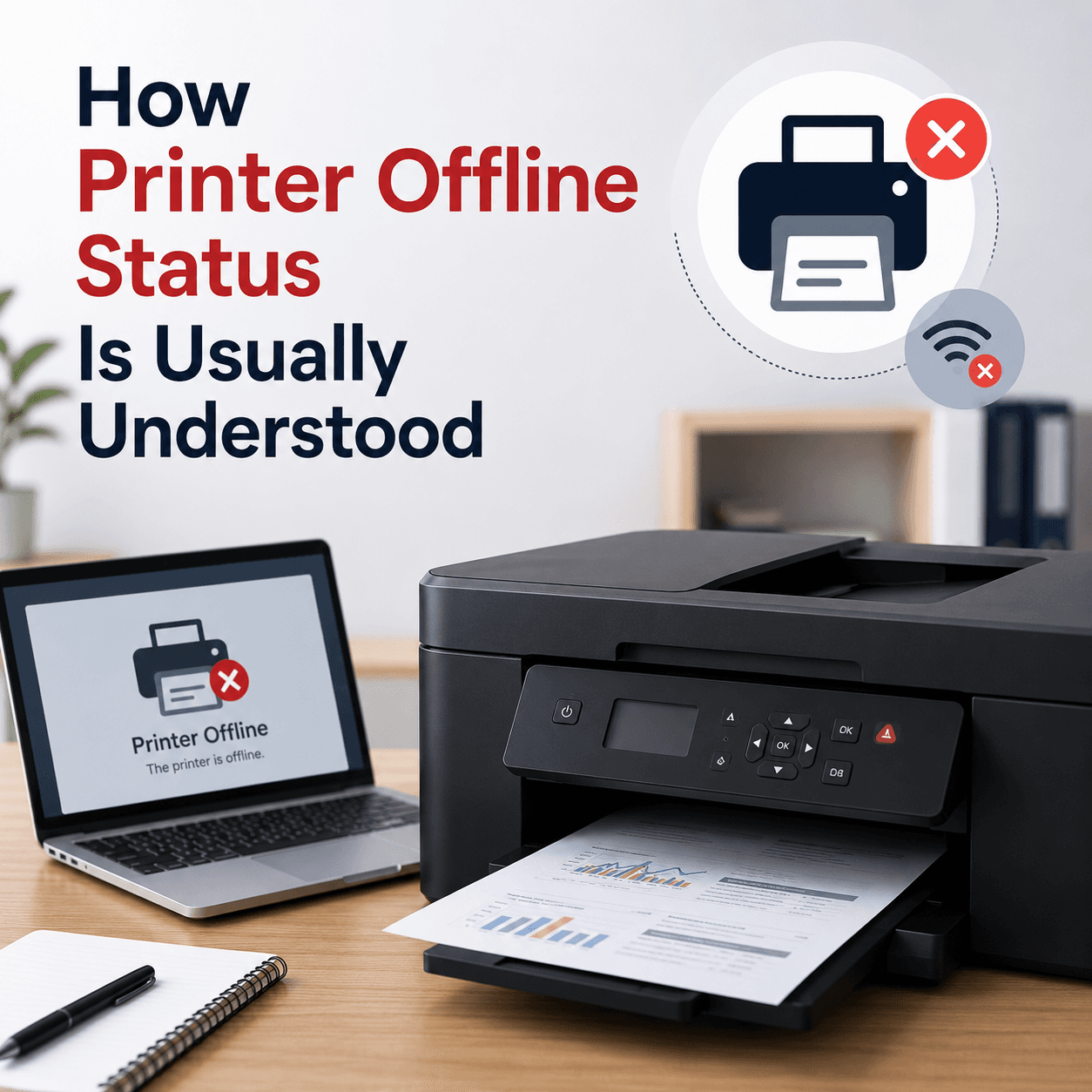
An 'Offline' status means Windows currently cannot confirm two-way communication with the printer. On a USB printer this usually points to the cable or power. On a wireless or network printer it more often means the computer and printer are not reachable to each other on the network at that moment.
Offline is a state, not necessarily a fault. Restoring the connection, waking the printer, or clearing the spooler frequently returns the status to 'Ready' without any change to the driver itself. It helps to think of offline as 'temporarily out of contact' rather than 'broken'.
Connection types and what they change
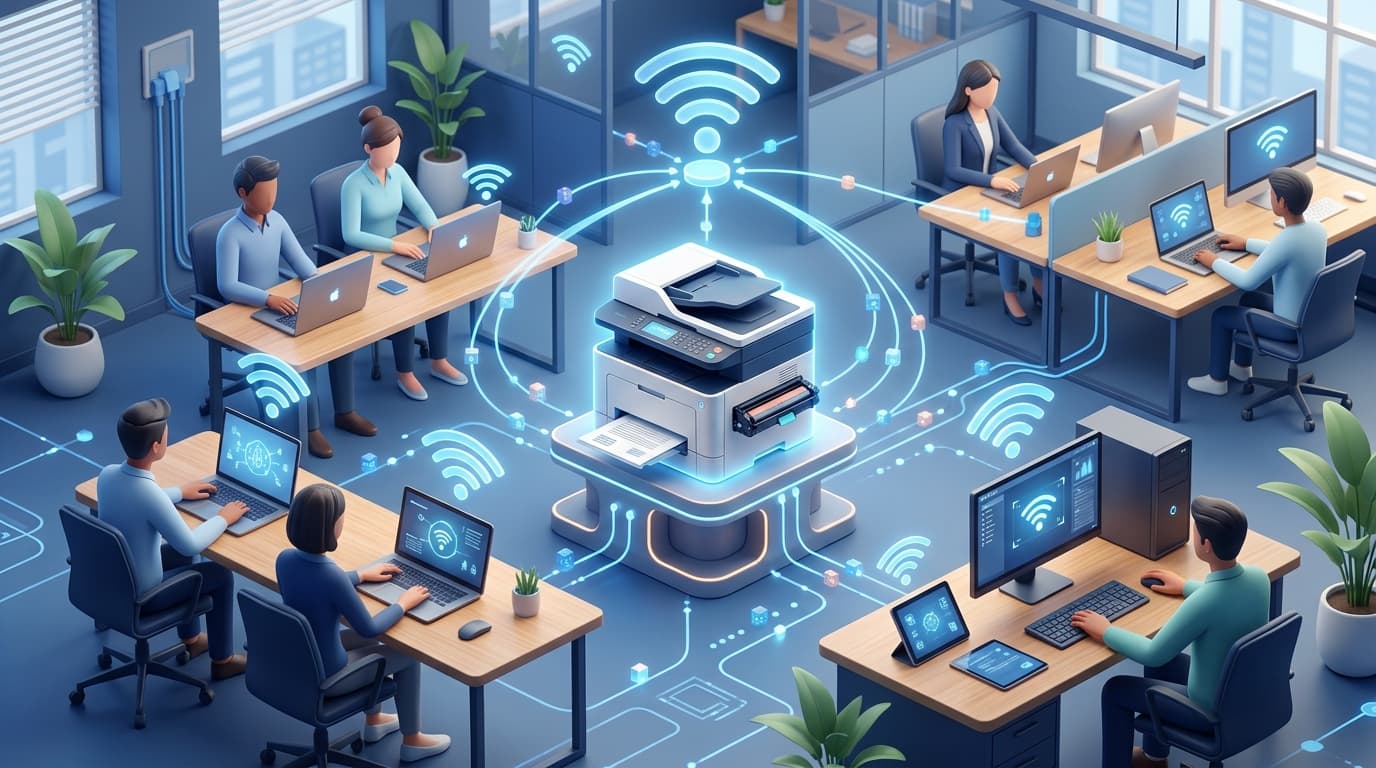
A USB printer has the simplest relationship with your computer: a direct cable. Problems here are usually physical — the cable, the port, or power. A network printer, whether wired by Ethernet or joined over Wi-Fi, depends on the shared network being healthy and both devices being able to find each other.
Wireless printers add one more wrinkle: home networks sometimes present separate Wi-Fi bands, and if the printer is on one and your computer on another, they may struggle to communicate even though both are 'on Wi-Fi'. Knowing your printer's connection type tells you which family of causes to consider first.
Drivers, updates, and duplicates
Windows can supply many printer drivers automatically, which is why some printers work the moment you plug them in. Others need the manufacturer's driver to unlock every feature. Over time, reinstalling a printer can leave duplicate entries in your list, and it is easy to send a job to a copy that is no longer active.
Keeping a single, correct printer entry — and a driver that matches your model — prevents a surprising amount of confusion. When something behaves oddly, checking that you are printing to the right entry is a quick, non-technical first step.
- A driver translates your document into a language your specific printer understands.
- The print queue and spooler send jobs one at a time; one stuck job blocks the rest.
- 'Offline' means out of contact, not broken — often a connection or spooler state.
- USB issues are usually physical; wireless issues are usually about the network.
- Duplicate printer entries and mismatched drivers cause a lot of avoidable confusion.
Common symptoms
Recognisable signs related to this topic, and what they generally point to.
Printer shows as 'Offline'
Windows cannot currently reach the printer. This is often a connection or spooler state rather than a hardware fault.
Print queue is frozen
A single stuck document can hold up everything behind it. Clearing the queue usually gets things moving again.
Wireless printer not found
The printer and computer may be on different networks or bands, so the computer cannot see the printer at all.
Prints the wrong size or garbled text
A mismatched driver can send instructions the printer misinterprets, producing odd layouts or symbols.
Two copies of the same printer
Reinstalling can leave duplicate entries, and jobs sent to an inactive copy simply never print.
Educational, not step-by-step
This topic explains concepts in general terms. Exact menus, wording, and steps differ by brand, model, and software version — always follow the official documentation for your specific device. Handy Guide does not provide repair, remote access, or paid support.
Frequently asked
Usually yes — each printer model speaks its own language, so it needs a matching driver. Windows can install many drivers automatically, but some printers still need the manufacturer's driver for full features.
Offline means Windows cannot currently talk to the printer, not that the printer is broken. It is commonly a paused spooler, a sleeping printer, or a network connection that has dropped.
The spooler is the Windows service that manages the print queue. It accepts print jobs, orders them, and sends them to the printer one at a time.
Jobs are processed in order. If the job at the front cannot finish, everything behind it waits until that blockage is cleared.
Reinstalling can create duplicate entries. If you send a job to an inactive copy, it simply never prints. Printing to the correct entry resolves it.
Yes. If the driver doesn't match the printer, the instructions can be misinterpreted, producing odd fonts, symbols, or layouts.
Related topics
 Imaging
Scanner Drivers
How scanner drivers and imaging standards like TWAIN and WIA let software capture images, and why a scanner is sometimes seen by Windows yet still won't scan from your app.
Read topic Peripherals
USB Drivers
How the USB driver stack recognises devices the instant you plug them in, why a device sometimes appears as 'unknown', and how power and ports quietly affect reliability.
Read topic Networking
Network Drivers
How network drivers connect your PC to Wi-Fi and Ethernet, why 'Connected, no internet' points to a specific layer, and how the pieces of the networking stack fit together.
Read topicKeep exploring the library
Every guide is written in plain language, free to read, and focused on helping you understand your devices with confidence.