
Scanner drivers and the imaging standards behind them
Scanning depends on both a driver and an imaging standard that applications use to request an image. Knowing how these fit together explains why a scanner can be detected yet still not scan from your app — and why print can work while scan does not.
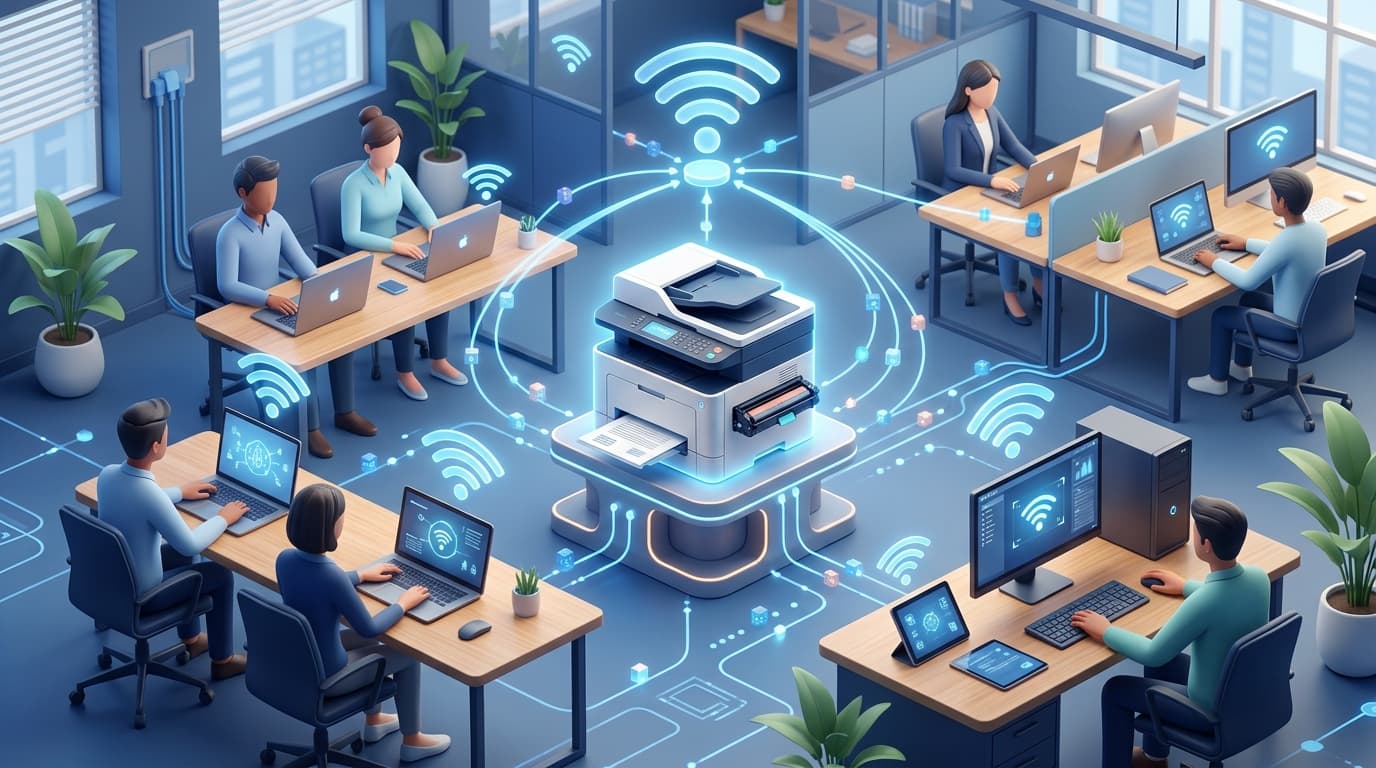
The places that matter
A quick orientation to the screens and tools this topic refers to.
Devices & Printers
Many all-in-one units appear here, combining print and scan functions under one device.
Scan app / imaging software
The application that requests the scan using a standard like WIA or TWAIN.
Imaging devices
The Device Manager category where the scanner's driver is listed.
Source selection
Where an app chooses which imaging source and interface it will scan from.
The ideas behind it
Understand these and the rest of the topic falls into place.
Two parts to scanning
A driver talks to the hardware, and an imaging standard lets applications ask for an image.
TWAIN and WIA
These are common standards that let many apps work with many scanners through a shared interface.
All-in-ones are two devices
A print/scan unit has separate print and scan functions that can work independently of each other.
Apps need permission
An application must be allowed to access imaging hardware before it can start a scan.
How scanning is different from printing
Printing sends data out to a device; scanning brings an image in from one. That inbound direction is why scanning relies on an imaging standard — a shared interface that applications use to request and receive an image from the scanner.
The two most common standards are WIA, built into Windows, and TWAIN, widely used by imaging applications. A scanner driver typically supports one or both. If your app expects one standard and only the other is available, the scanner can be present yet unavailable to that app.
TWAIN, WIA, and why they matter
Think of TWAIN and WIA as common languages for scanning. Because most scanners and most apps agree to speak at least one of them, a huge range of hardware and software can work together without custom integration. This is what makes 'scan into any app' possible.
Trouble appears at the seams. If an application only speaks TWAIN and the installed driver offers only WIA — or vice versa — the two cannot connect even though both are working. Recognising this mismatch reframes a baffling failure as a simple language gap.
- WIA is built into Windows and used by many simple scan tools.
- TWAIN is common in dedicated imaging and document apps.
- A driver may offer one, the other, or both.
All-in-one devices
Many home devices combine a printer and a scanner in one unit. Internally these are two separate functions that happen to share a chassis. Windows often represents them separately, which is why printing can work perfectly while scanning does not, or vice versa.
When troubleshooting an all-in-one, it helps to treat print and scan as independent. A working print path tells you the connection is fine; the scan issue then lives in the scanning software layer.
Why a scanner is 'seen but not usable'
Windows may list a scanner under imaging devices, confirming the driver loaded, while a particular application still cannot scan. This usually means the application and the scanner are not speaking through the same imaging standard, or the app lacks permission to access the device.
Understanding this split — hardware recognition versus application access — turns a confusing symptom into a clear, narrow question about the scanning software rather than the hardware.
Sources, feeders, and blank scans
Many scanners offer more than one source: the flatbed glass and, on some models, an automatic document feeder. If the app is set to the feeder but the page is on the glass, the result can be an empty or unexpected scan. The hardware did exactly what it was told — it just looked in the wrong place.
Blank or partial scans, then, are frequently a settings question rather than a fault. Checking the selected source, page size, and area is a quick way to explain output that seemed mysterious.
- Scanning needs both a driver and an imaging standard (TWAIN or WIA).
- A standard mismatch between app and driver blocks scanning even when both work.
- All-in-ones treat print and scan as separate functions.
- 'Seen but won't scan' is usually a software or permission gap, not hardware.
- Blank scans are often the wrong source (glass vs feeder) or settings.
Common symptoms
Recognisable signs related to this topic, and what they generally point to.
Scanner detected but won't scan
The hardware is seen, but the app cannot start a scan — often an imaging-standard or app-permission gap.
Printing works, scanning doesn't
On an all-in-one, print and scan are separate paths, so one can work while the other does not.
Scan app can't find the device
The app may be looking for a different imaging interface than the one the scanner exposes.
Scans are blank or cut off
The wrong source (glass vs feeder) or a settings mismatch can produce empty or partial images.
Only one app can scan at a time
Imaging devices are typically used by a single application at once, so another app may report it as busy.
Educational, not step-by-step
This topic explains concepts in general terms. Exact menus, wording, and steps differ by brand, model, and software version — always follow the official documentation for your specific device. Handy Guide does not provide repair, remote access, or paid support.
Frequently asked
They are imaging standards that let applications request scans from many different scanners through a common interface. WIA is built into Windows; TWAIN is widely used by imaging apps.
Print and scan are separate functions inside one device. A working print path shows the connection is fine, so a scan issue usually sits in the scanning software.
The scanner driver may be loaded while your app expects a different imaging standard, or the app may not have permission to use the device.
The app may be set to the wrong source, such as the feeder instead of the glass, or the scan area and page size may not match the document.
Imaging devices are generally used by one application at a time. Closing the app that is holding the scanner frees it for another.
Not necessarily. Windows includes basic scanning through WIA, though dedicated apps may offer more control using TWAIN or WIA.
Related topics
 Printing
Printer Drivers
How printer drivers translate your documents into print, and why an offline status or stuck queue usually traces back to the driver, the spooler, or the connection.
Read topic Peripherals
USB Drivers
How the USB driver stack recognises devices the instant you plug them in, why a device sometimes appears as 'unknown', and how power and ports quietly affect reliability.
Read topic Networking
Network Drivers
How network drivers connect your PC to Wi-Fi and Ethernet, why 'Connected, no internet' points to a specific layer, and how the pieces of the networking stack fit together.
Read topicKeep exploring the library
Every guide is written in plain language, free to read, and focused on helping you understand your devices with confidence.