
Understanding Device Manager Error Symbols
7 min read · Updated 2026
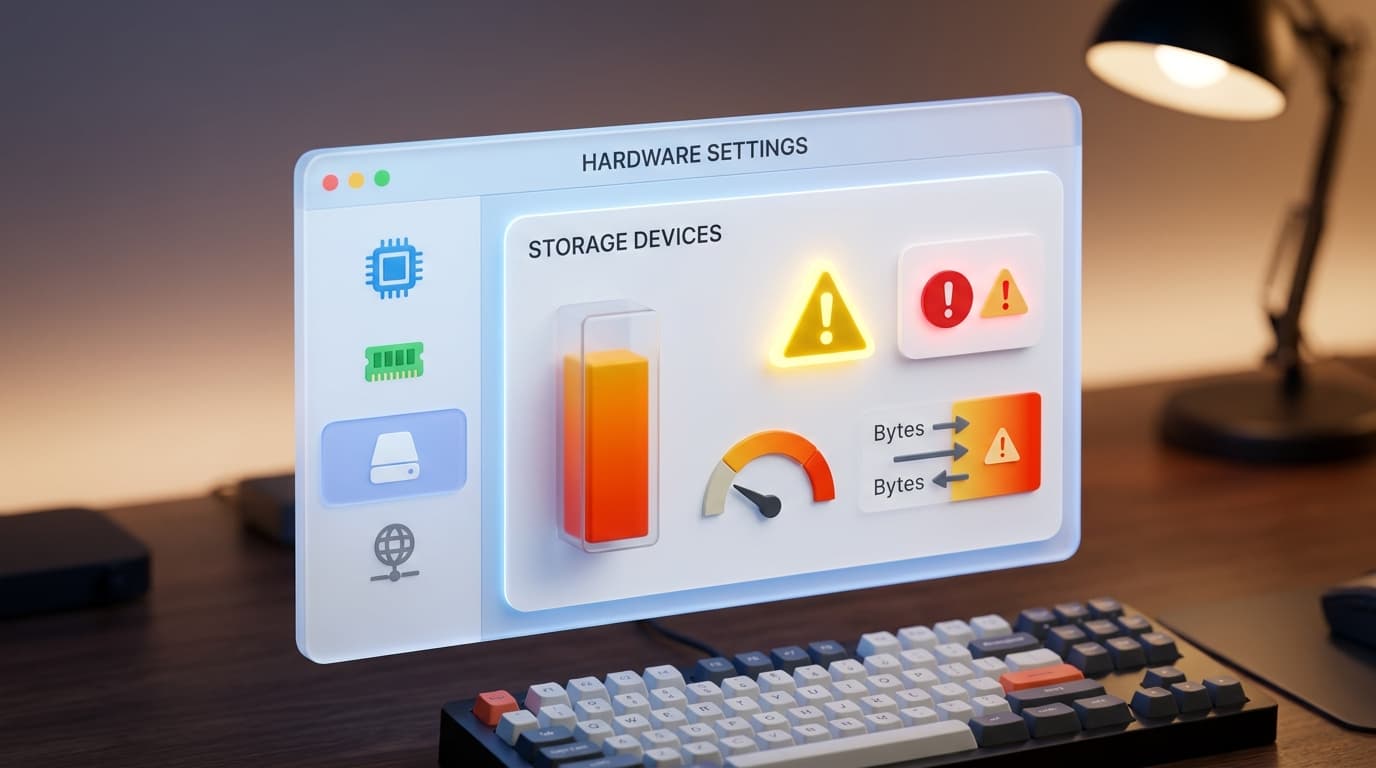
Device Manager is the Windows tool that lists your hardware and the drivers behind it. Small symbols next to a device are a quick way to see that something needs attention.
Rather than a source of worry, these symbols are best seen as signposts. Each one narrows a vague 'something is wrong' into a specific 'this device needs a look', which is exactly what you want when troubleshooting.
This guide explains the common symbols and what they generally indicate, so the list becomes a helpful map rather than a puzzle.
A map of hardware
Device Manager groups your hardware and shows each driver.
Symbols are clues
A mark localises a problem to one device or driver.
Unknown devices
Hardware found with no matching driver yet.
What Device Manager shows
Device Manager groups your hardware by category — display adapters, network adapters, imaging devices, and so on — and shows the driver associated with each. It is the standard place to see whether Windows recognises a device and has a driver for it.
Most of the time, devices sit quietly in their categories with no marks at all, which means Windows considers them working normally.
Common symbols
A small warning mark, often a yellow triangle with an exclamation point, indicates that a device is detected but not working as expected — frequently a driver issue. A device listed under 'Other devices' usually means Windows found hardware but has no matching driver for it yet.
Other marks can indicate a device that has been disabled. Each symbol is a hint about the category of issue rather than a full diagnosis.
- Warning triangle: detected but not working as expected.
- Other devices: found, but no matching driver yet.
- Disabled indicator: turned off rather than faulty.
How symbols narrow things down
The value of these symbols is that they localise a problem. A warning on one network adapter tells you the issue is with that device or its driver, not with the whole system. An 'unknown device' points specifically at a missing driver.
Reading the symbols first turns a broad worry into a narrow question, which is the most useful first step in understanding any device issue.
A disabled device versus a faulty one
It is easy to mistake a deliberately disabled device for a broken one. A disabled device has simply been switched off within Windows and can be turned back on; it is not a malfunction. The distinction matters because the response is completely different.
This is why reading the specific symbol, rather than reacting to the presence of any mark, is worthwhile. 'Disabled' and 'not working' look similar at a glance but mean very different things.
Reading status details
Beyond the symbols, each device has a status description in its properties that puts the mark into words. It often states plainly whether the device is working, has a driver problem, or has been disabled, which confirms what the symbol suggested.
Using the symbol and the written status together gives a clearer picture than either alone. Together they turn Device Manager from an intimidating list into a readable summary of your hardware's health.
- No mark usually means Windows considers a device healthy.
- A warning triangle means detected but not working as expected.
- 'Other devices' means hardware with no matching driver yet.
- A disabled device is switched off, not broken.
- The written status confirms what a symbol is hinting at.
A note on purpose
This article is educational and general in nature. Exact steps and menus vary by device, brand, and software version — always follow the official documentation for your specific hardware. Handy Guide does not offer repair, remote access, or paid support services.
Frequently asked
It generally means the device is detected but not working as expected, often due to a driver issue.
Windows found hardware but does not have a matching driver for it yet, so it cannot use the device's features.
No. A disabled device has been switched off within Windows and can be re-enabled; it is not a malfunction.
Each device's properties include a written status that describes whether it's working, has a driver problem, or is disabled.
Related articles
 System
How the Windows Registry Stores Device Settings
A gentle explanation of what the registry is, how it is organised into keys and values, why it matters for devices and drivers, and why it is treated with care.
 Performance
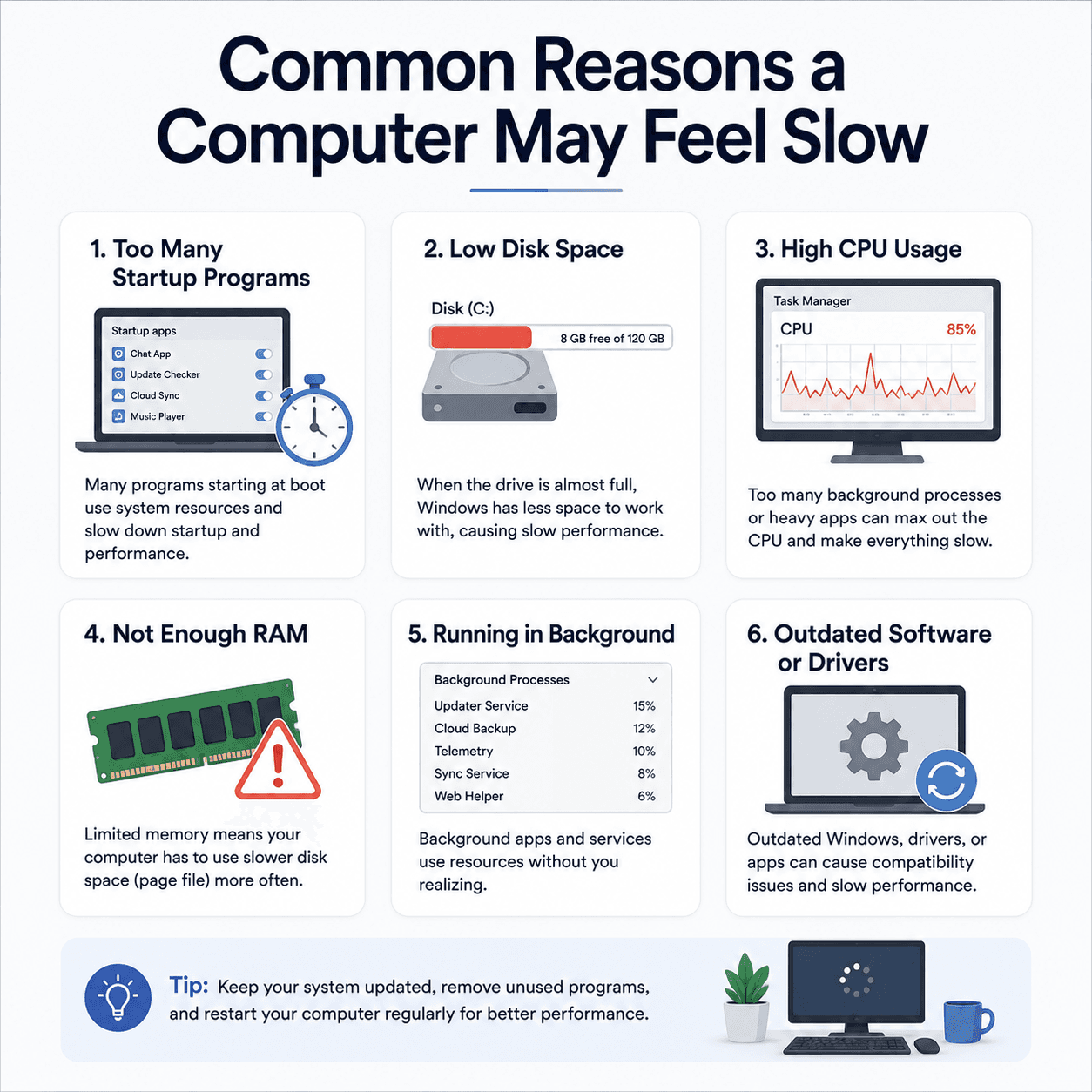
Common Reasons a Computer May Feel Slow
The everyday factors that add up to a sluggish PC — startup load, disk space, memory, background activity, and heat — explained clearly and without alarm.
 System
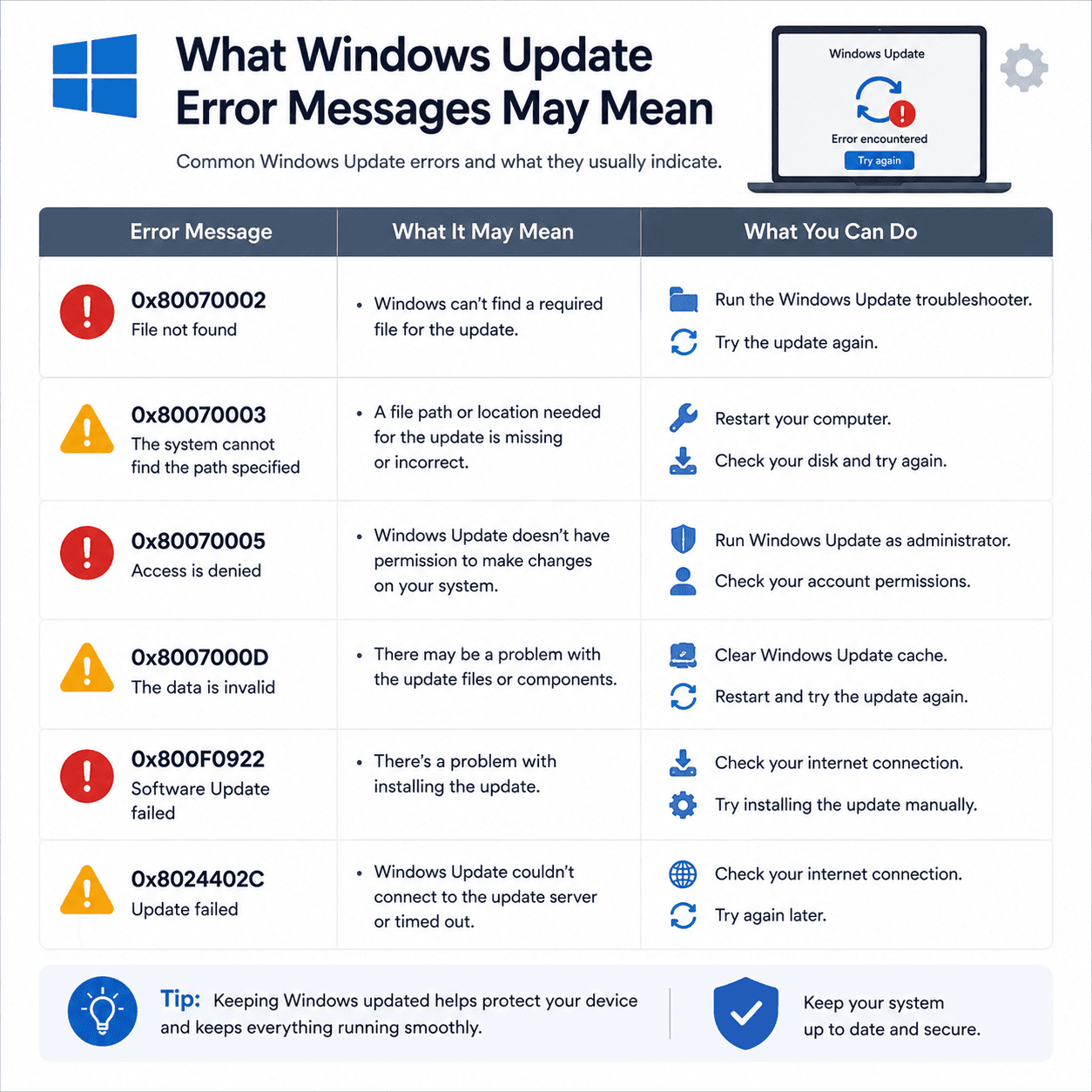
What Windows Update Error Messages May Mean
How to read Windows Update error codes as clues to a category of issue, what common examples suggest, and why rollbacks are a safety feature.