
How to Reset a Printer to Factory Defaults
7 min read · Updated 2026
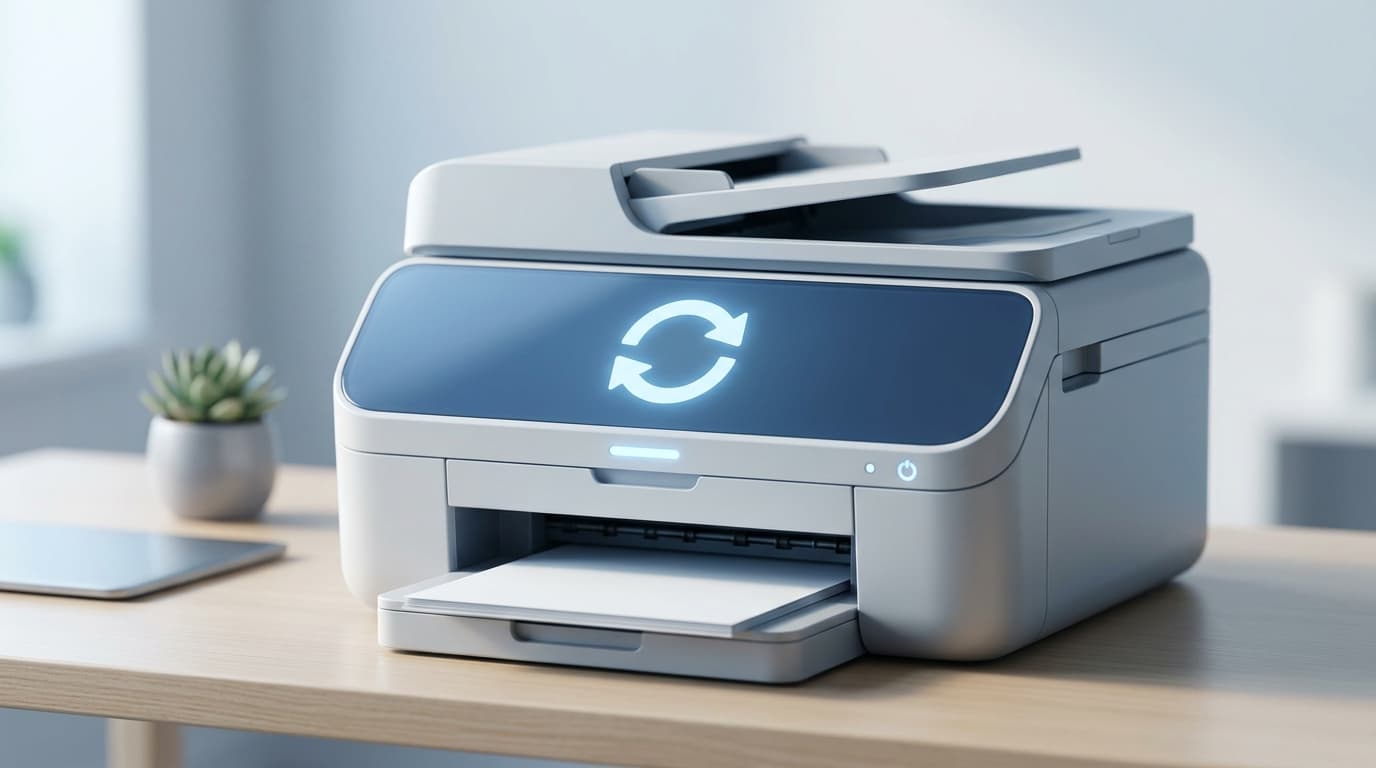
A factory reset returns a printer to the settings it had when it left the factory. It clears customisations such as saved Wi-Fi details, custom preferences, and stored network configuration, leaving the device in a clean, known state.
It is one of those phrases that sounds drastic but is really quite ordinary. Think of it as wiping the printer's memory of choices you made over time, so it behaves like new — without touching the printer's core ability to print.
This article explains what a reset does and does not do, the different kinds of reset, and the general approach. Exact steps vary by model, so always treat your printer's own documentation as the authority for your specific device.
Soft vs hard reset
A soft reset just restarts; a factory reset clears stored settings entirely.
Clears saved network
Wi-Fi details are wiped, so the printer must be reconnected afterwards.
Settings, not hardware
A reset changes stored preferences, not the physical printer or its computer driver.
What a factory reset actually clears
A reset typically removes stored settings rather than anything physical. That usually includes saved Wi-Fi network details, custom print preferences, and any configuration you added over time. After a reset, the printer behaves as if it were new and generally needs to be set up again.
A reset does not repair hardware problems and does not change the printer's driver on your computer. It only affects settings stored inside the printer itself. This is an important distinction: the reset addresses the printer's own memory, not the software on your PC that talks to it.
Soft reset versus factory reset
Not every 'reset' is the same. A soft reset is simply turning the printer off and on again, which clears its temporary working state and often resolves a momentary glitch. Nothing you configured is lost. It is the gentlest first step and worth trying before anything more involved.
A factory reset is far more thorough. It erases stored settings and returns the printer to its out-of-the-box condition. Because it undoes your configuration, it is a bigger step reserved for when settings have become genuinely tangled or before passing the printer on.
- Soft reset: power off and on; keeps your settings.
- Factory reset: erases stored settings; printer behaves as new.
- Try the gentle option first before the thorough one.
When a reset can help
Resets are most useful when a printer's stored configuration has become tangled — for example, it keeps trying to join a network that no longer exists, or its settings have drifted into an unclear state. Starting fresh removes that accumulated confusion.
They are also common before giving a printer away, so that saved network credentials and preferences do not travel with the device. In that case the reset is as much about privacy as it is about troubleshooting.
The general approach
Most printers offer a reset through their on-device menu, often under a settings or maintenance section. Some models use a button sequence at power-on instead. Because the exact path differs widely, the safest route is to follow the steps in your model's manual.
After a reset, plan to reconnect the printer to your network and re-add it on your computer. Treat the reset as the first step of a fresh setup rather than a one-click fix.
- Note down current settings you may need again, such as the Wi-Fi network name.
- Locate the reset option in the on-device menu or the documented button sequence.
- Expect to reconnect to Wi-Fi and re-add the printer afterwards.
After the reset: setting up again
Once reset, the printer is a blank slate. It will usually walk through initial setup again, asking for language, region, and network details. Reconnecting it to Wi-Fi and confirming it appears on your network are the key steps before it can print wirelessly once more.
On the computer side, the existing printer entry may need to be removed and re-added so it points at the freshly configured device. Approaching this calmly, as a short setup rather than a repair, keeps the process straightforward.
- A factory reset clears stored settings, not the printer's ability to print.
- A soft reset (power cycle) is gentler and keeps your configuration.
- Resets help when settings are tangled or before giving a printer away.
- Steps vary by model — follow your printer's own documentation.
- Expect to reconnect Wi-Fi and re-add the printer afterwards.
A note on purpose
This article is educational and general in nature. Exact steps and menus vary by device, brand, and software version — always follow the official documentation for your specific hardware. Handy Guide does not offer repair, remote access, or paid support services.
Frequently asked
No. A reset only affects settings stored inside the printer. The driver lives on your computer and is unchanged.
Usually yes. A reset clears saved Wi-Fi and preferences, so the printer generally needs to be reconnected and re-added.
A soft reset is just turning the printer off and on, keeping your settings. A factory reset erases stored settings and returns the printer to its original state.
Yes. A factory reset removes saved network details and preferences so they don't travel with the device.
Related articles
 Printing
How Printer Offline Status Is Usually Understood
What 'offline' really means, why it differs between USB and wireless printers, how the spooler is involved, and why it is a state rather than a fault.
 Printing
When a Printer Only Prints Blank Pages
The usual explanations for blank output — ink and toner, protective seals, how a page is rendered, and driver or connection factors — in a clear order.
 Printing
How to Share a Printer on a Local Network
The concepts behind sharing one printer with several computers, the difference between shared and network printers, and the requirements that make it work.