
When a Printer Only Prints Blank Pages
7 min read · Updated 2026
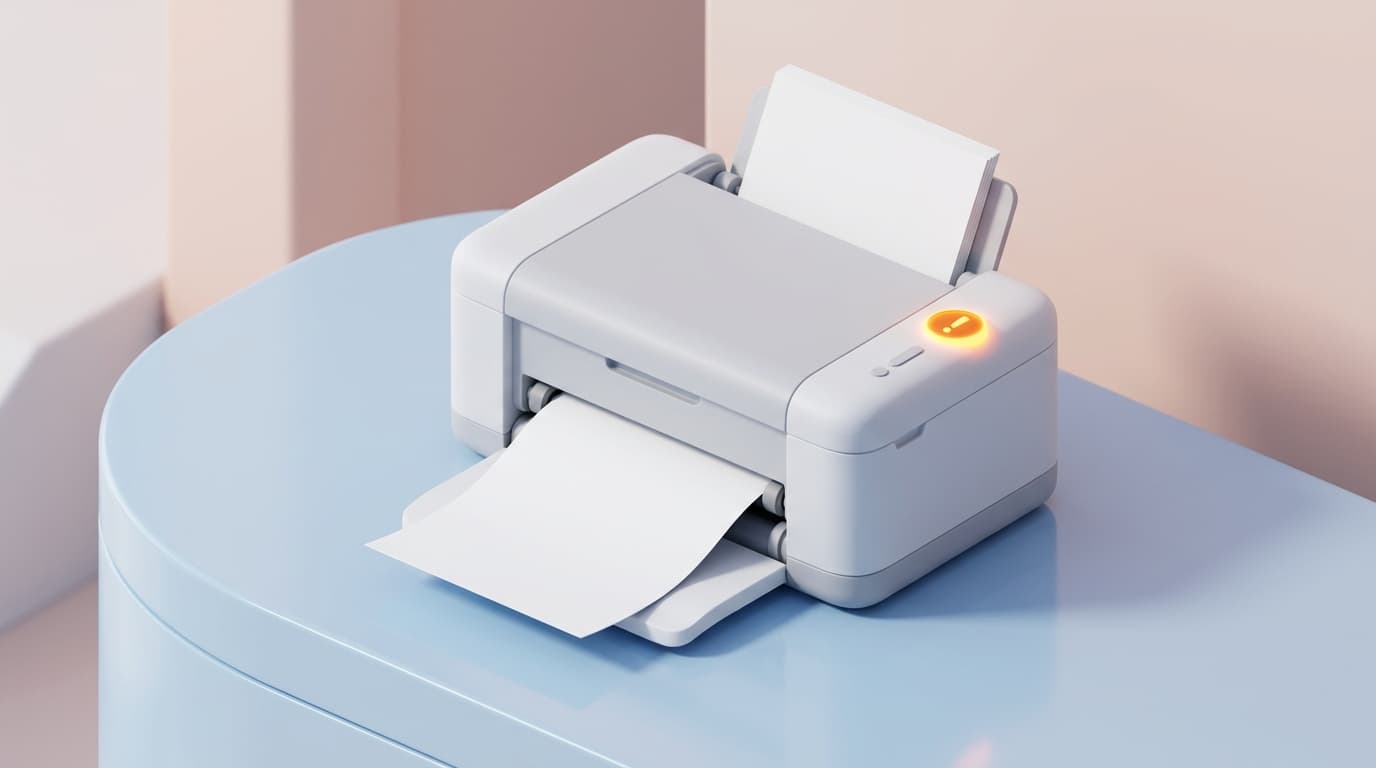
Blank pages coming out of a printer are a puzzle: the printer clearly works enough to move paper, yet nothing appears. The explanations are usually straightforward once you consider how a page becomes print.
Working through the possibilities in order — from the most common to the least — turns a frustrating mystery into a short checklist. The paper is moving, so the mechanics are fine; the question is why no marks are landing on it.
This guide walks through the common reasons for blank output in plain language.
Supplies
Empty or sealed ink and toner are the most common cause.
Rendering
A page placed off-area or genuinely blank prints as nothing.
Driver & link
A mismatch or hiccup can send a page without its content.
Ink, toner, and supplies
The most common cause is simply the supply that puts marks on the page. An empty or dried-out ink cartridge, or a toner cartridge that has run out, can produce pages that move through the printer but carry no visible content.
Some printers also use protective tape or seals on new supplies that must be removed before use. Overlooking that can lead to blank output from a brand-new cartridge.
The overlooked protective seal
New cartridges frequently ship with protective film, tape, or a seal that keeps the ink or toner in place during shipping. If any of this is left on, the cartridge is effectively blocked from marking the page, and the result is perfectly blank output from something brand new.
It is one of the most common and most easily missed causes. Checking that all packaging material has been removed from a new cartridge is a quick, worthwhile step.
- New supplies often have tape or a seal to remove.
- A remaining seal blocks marking entirely.
- Blank output from a new cartridge points here first.
How a page is rendered
Before printing, the driver renders your document into a page image the printer reproduces. If that rendering produces an effectively empty page — for instance, content placed off the printable area, or a document that is genuinely blank on the relevant page — the printer faithfully prints nothing.
This is worth checking because it is easy to mistake a document or layout issue for a printer fault. A quick look at a print preview can reveal an unexpectedly empty page.
Connection and driver considerations
Less commonly, a communication hiccup or a mismatched driver can result in a page that prints without its intended content. Because the driver translates the document for the printer, the wrong translation can produce unexpected output.
Thinking through the chain — supplies, rendering, then driver and connection — gives a clear order for understanding blank pages rather than guessing.
A simple order to reason through
Putting it all together, the most efficient way to understand blank pages is to move from the most common cause to the least. Start with supplies and seals, then consider what the document and preview actually contain, and only then look at the driver and connection.
This ordering matches how likely each cause is, so it tends to explain the blank page quickly without jumping to conclusions about the hardware.
- Empty or sealed ink and toner are the most common cause.
- A protective seal left on a new cartridge blocks all marking.
- A page placed off-area or truly blank prints as nothing.
- A mismatched driver can send a page without its content.
- Reason from most likely (supplies) to least likely (driver/connection).
A note on purpose
This article is educational and general in nature. Exact steps and menus vary by device, brand, and software version — always follow the official documentation for your specific hardware. Handy Guide does not offer repair, remote access, or paid support services.
Frequently asked
Some new supplies have protective tape or a seal that must be removed first. Until it is, the cartridge cannot mark the page.
Yes. If content sits outside the printable area or a page is genuinely blank, the printer will faithfully print nothing. A print preview helps check.
Start with supplies and seals, then check what the document actually contains, and finally consider the driver and connection.
Less commonly, yes. A mismatched driver can translate the document incorrectly, producing a page without its intended content.
Related articles
 Printing
How Printer Offline Status Is Usually Understood
What 'offline' really means, why it differs between USB and wireless printers, how the spooler is involved, and why it is a state rather than a fault.
 Printing
How to Reset a Printer to Factory Defaults
What a factory reset does, when it can help, the difference between a soft and hard reset, and the general steps involved in returning a printer to its original settings.
 Printing
How to Share a Printer on a Local Network
The concepts behind sharing one printer with several computers, the difference between shared and network printers, and the requirements that make it work.