
How to Share a Printer on a Local Network
7 min read · Updated 2026
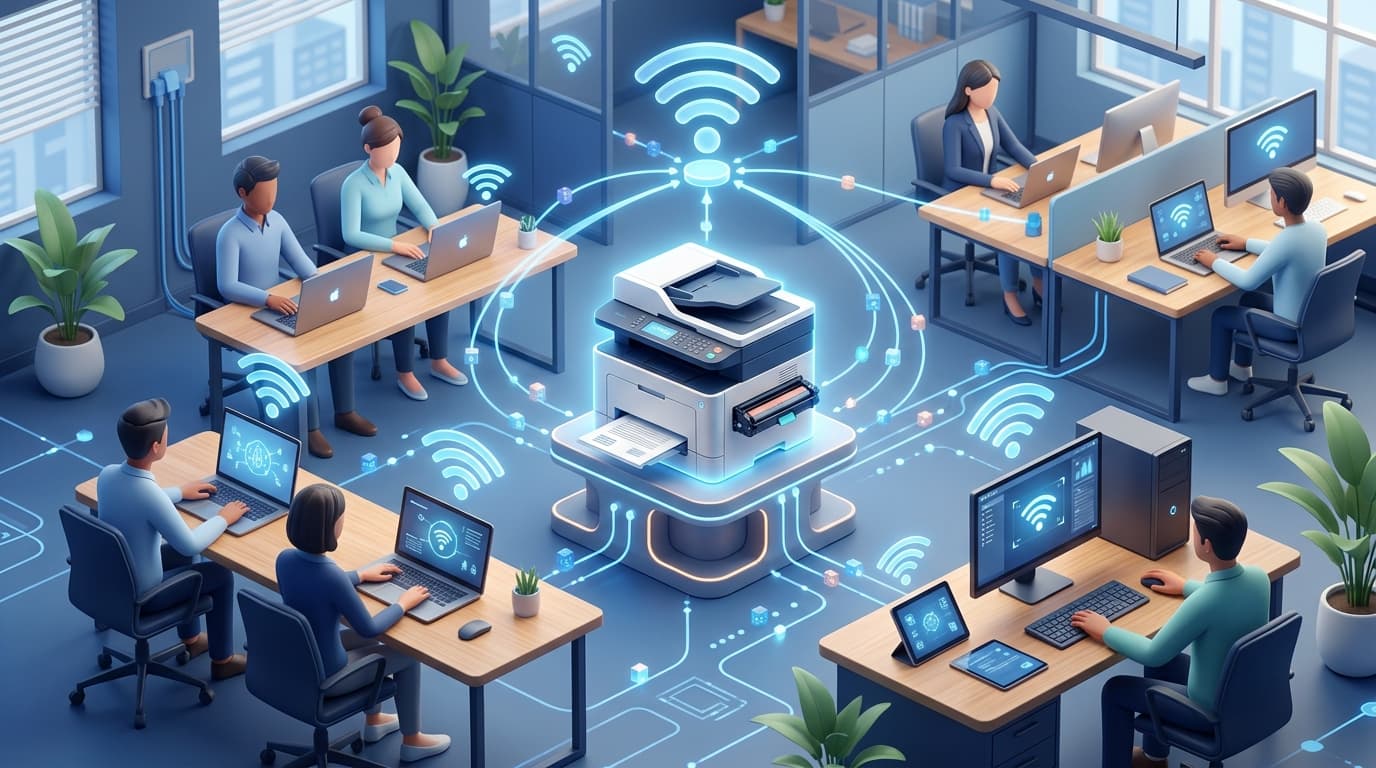
Sharing a printer lets several computers in a home or small office use one device. There are a couple of different ways this works, and knowing the difference makes setup much clearer.
The distinction between a printer shared from a computer and a printer that connects directly to the network is the single most useful thing to understand here. It shapes everything else about how sharing behaves.
This guide explains printer sharing concepts rather than model-specific steps, which vary by device and Windows version.
Shared printer
Attached to one computer that makes it available to others.
Network printer
Connects directly to the network, independent of any computer.
Same network
Sharing needs all devices on the same local network.
Shared versus network printers
There are two common approaches. A shared printer is connected to one computer, which makes it available to others on the network; that host computer must be on for others to print. A network printer connects to the network directly — by Wi-Fi or Ethernet — and is available to everyone without relying on another computer.
Understanding which type you have shapes everything else. A directly networked printer is usually simpler to share because it does not depend on a host machine being awake.
How sharing works
When a printer is shared from a host computer, that computer advertises the printer to others on the same network. Other computers then add it and send their jobs to the host, which passes them to the printer.
With a network printer, each computer connects to the printer directly. There is no middle computer, so any device on the network can add it independently.
Requirements to keep in mind
For any sharing to work, the computers and the printer generally need to be on the same local network. Sharing also depends on the relevant Windows sharing settings being enabled and on each computer having a suitable driver for the printer.
Framing sharing as 'same network, right settings, right driver' keeps the essentials in view without getting lost in model-specific menus.
- All devices should be on the same local network.
- A shared printer needs its host computer powered on; a network printer does not.
- Each computer needs a compatible driver for the printer.
Why a shared printer sometimes disappears
A common surprise with the shared-from-a-computer approach is that the printer vanishes for everyone else when the host computer sleeps or shuts down. Because all jobs pass through that host, it must be awake and connected for others to print.
This is not a fault but a direct consequence of the design. If a printer needs to be available around the clock, connecting it directly to the network avoids depending on any single computer.
Choosing the right approach
For a printer that already has Wi-Fi or Ethernet, connecting it straight to the network is usually the simplest and most reliable choice. Everyone adds it independently, and there is no host to keep running.
The shared-from-a-computer route makes the most sense for an older printer with only a USB connection. Understanding the trade-off — convenience versus a dependency on one machine — lets you pick the approach that fits your situation.
- A shared printer runs through one host computer; a network printer stands alone.
- All devices must be on the same local network.
- A shared printer needs its host powered on to work for others.
- Each computer needs a compatible driver for the printer.
- Direct network connection suits always-on use; sharing suits USB-only printers.
A note on purpose
This article is educational and general in nature. Exact steps and menus vary by device, brand, and software version — always follow the official documentation for your specific hardware. Handy Guide does not offer repair, remote access, or paid support services.
Frequently asked
A shared printer is attached to one computer that makes it available to others. A network printer connects to the network directly and does not depend on another computer.
For a shared printer, yes — others print through it. A directly networked printer does not need a host computer.
If the host computer sleeps or shuts down, the printer it shares becomes unavailable, because all jobs pass through that machine.
If the printer has Wi-Fi or Ethernet, connect it directly to the network. Use computer sharing mainly for older, USB-only printers.
Related articles
 Printing
How Printer Offline Status Is Usually Understood
What 'offline' really means, why it differs between USB and wireless printers, how the spooler is involved, and why it is a state rather than a fault.
 Printing
How to Reset a Printer to Factory Defaults
What a factory reset does, when it can help, the difference between a soft and hard reset, and the general steps involved in returning a printer to its original settings.
 Networking
Basic Router and Wi-Fi Connection Concepts
A plain-language tour of how a router builds your home network, what the admin page is, why bands and channels matter, and how to tell a router problem from an internet problem.